What SOS Meaning on iPhone? How To Fix it (2025)
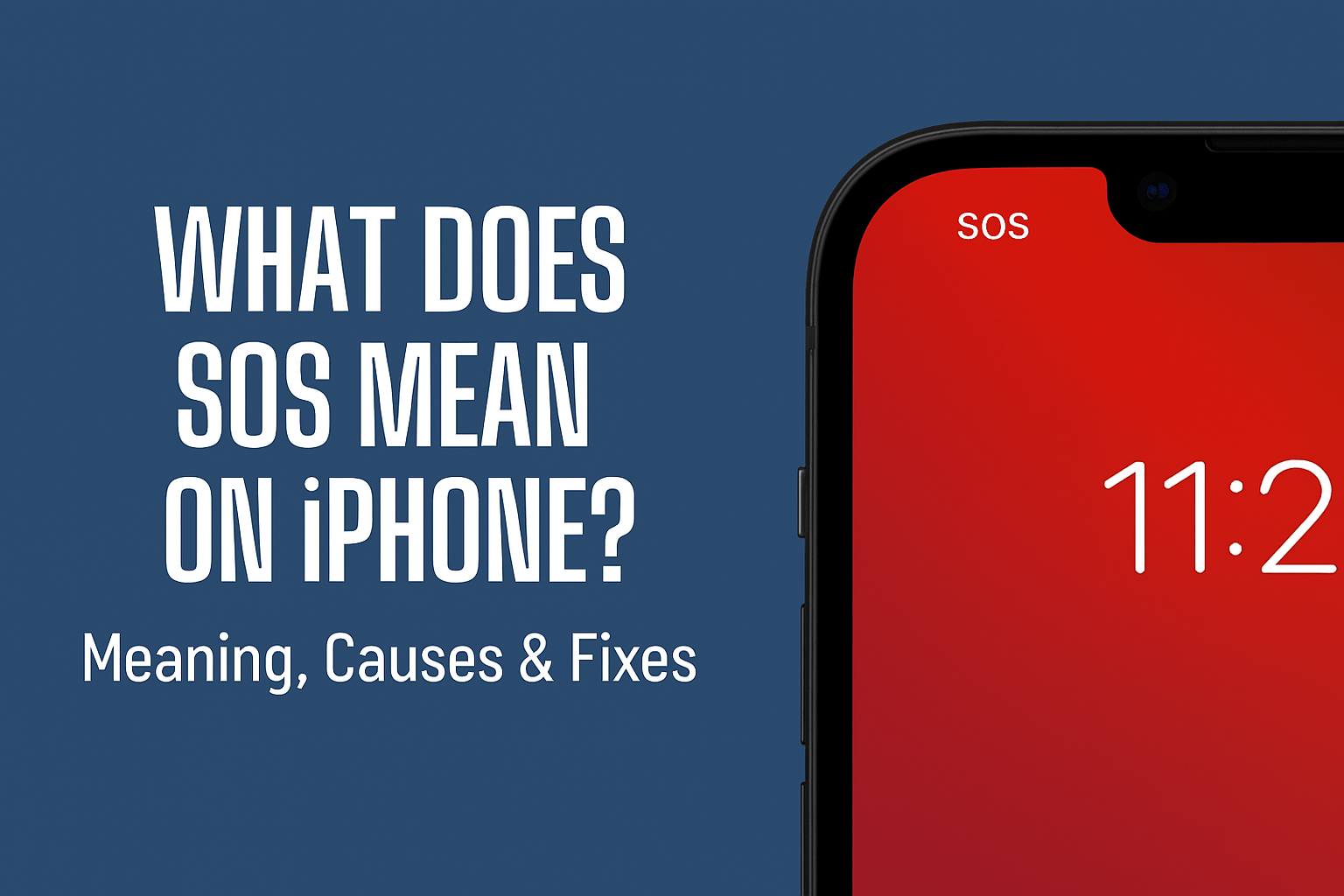
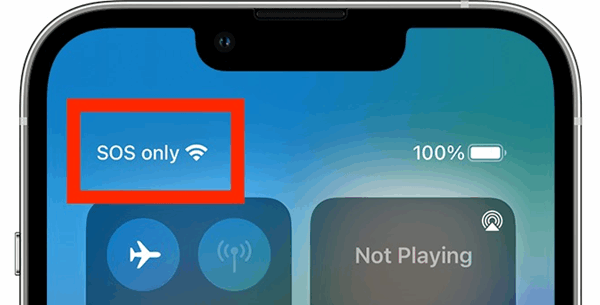
SOS on your iPhone means that your device can’t connect to your regular cellular network but can still make emergency calls. SOS mode ensures you can contact emergency services even when you don’t have normal signal coverage.
If you’ve ever looked at your iPhone and noticed the word SOS in the top status bar, you probably felt confused or even worried. Many iPhone users think SOS means their phone is broken, hacked, or that something is seriously wrong. In reality, SOS on iPhone has a specific meaning: it indicates that your device can only make emergency calls when regular network service is unavailable. This is a safety feature, not a sign of a malfunction.
This feature, designed primarily for safety, can be a source of reassurance in emergencies. However, seeing iPhone SOS only can be frustrating because it means you can’t use your routine calls, texts, or mobile data. The good news is that SOS usually has simple causes, such as a weak signal, temporary carrier issues, or a SIM card glitch, and it can often be fixed quickly.
In this comprehensive guide, you’ll learn precisely what SOS on the iPhone means, why it appears, how it works, and what steps you can take to fix or prevent it. We’ll also cover the differences between SOS and Apple’s Emergency SOS feature, as well as the new SOS via satellite option available on iPhone 14 and later models. By the end, you’ll be well-informed and prepared to handle any SOS situation on your iPhone.
What Does SOS Mean on iPhone?
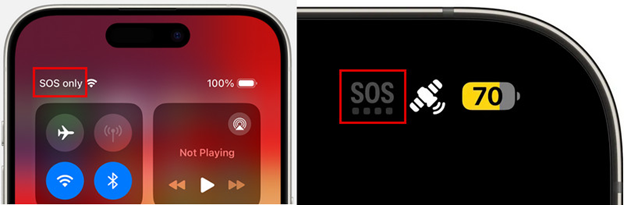
When your iPhone shows SOS or SOS only in the status bar, it means your phone has lost connection to your carrier’s network but can still connect to emergency services. In simple terms, you can’t make regular calls, send texts, or use mobile data—but you can call local emergency numbers, such as 911 (U.S.), 112 (Europe), or 000 (Australia).
This feature is a standard feature of modern phones, available across most regions. Even if your carrier signal is unavailable, your iPhone can temporarily use another available network to make emergency calls. That’s why you’ll see SOS instead of “No Service.”
Key Takeaways
SOS = Emergency calls only.
Not an error. It’s a built-in safety feature on your iPhone.
Still limited. You can’t use the internet, apps, or make regular calls while in SOS mode.
Read More: How to Stop Instagram From Saving Posts to Camera Roll (iPhone & Android)
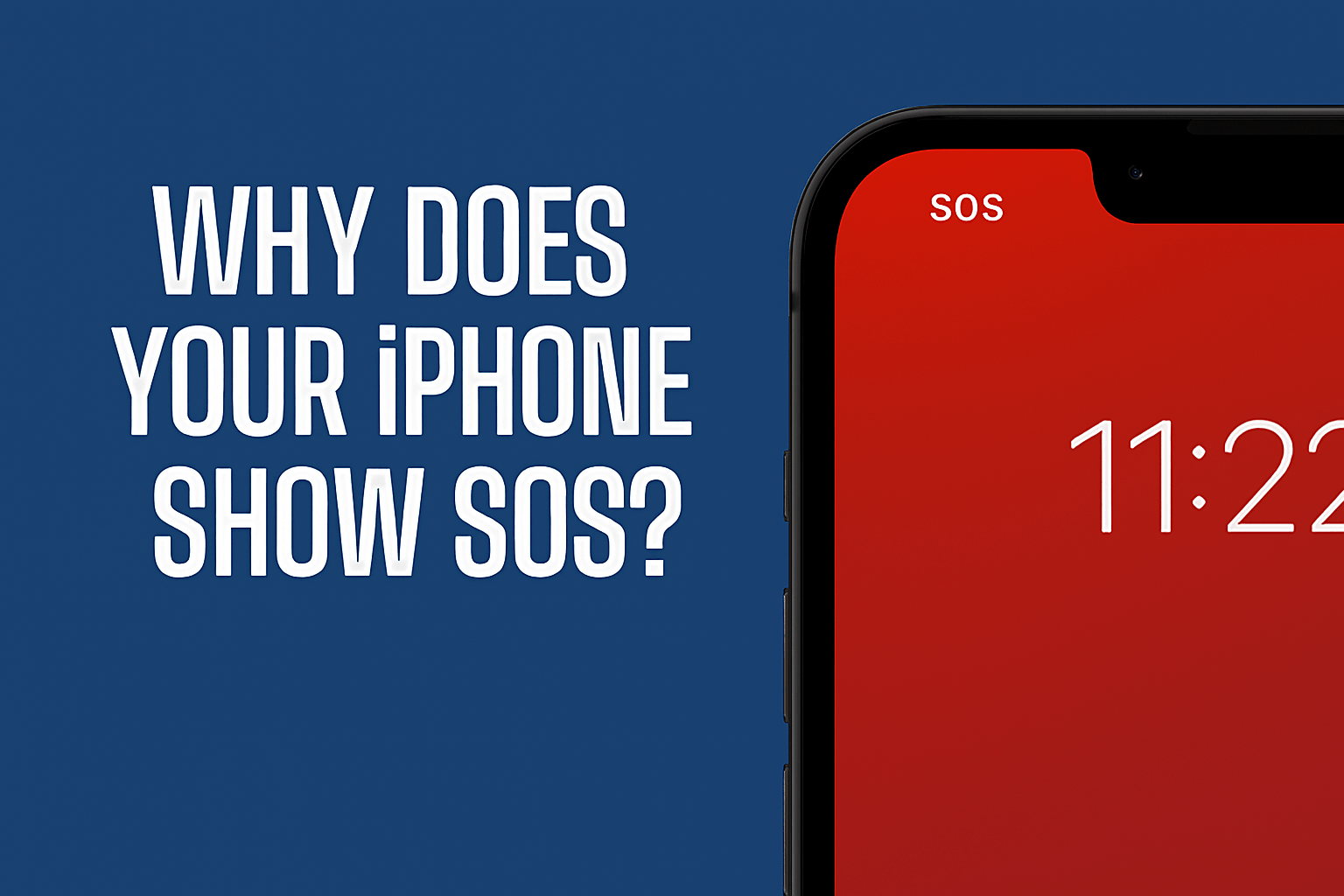
Why Does Your iPhone Show SOS?
Seeing SOS on iPhone usually happens because your device can’t connect to your carrier’s network properly. Several common reasons cause this:
Weak Cellular Signal
If your iPhone is in a location with a weak cellular signal, such as a remote area, a basement, or a building with thick walls, it may lose connection to your carrier’s network. When this happens, your phone cannot make regular calls or send messages, but it can still access emergency networks. That’s why you’ll see ‘SOS’ or ‘SOS Only’ on your iPhone’s status bar. This feature is designed to let you reach emergency services even when your regular network is unavailable.
Carrier Issues or Network Outage
Sometimes the cause of SOS mode is a problem with your carrier rather than your iPhone. Temporary network outages, maintenance, or disruptions can prevent your phone from connecting to your usual network. Even if your iPhone displays full signal bars, network issues may still prevent you from making and receiving regular calls and texts. In such cases, SOS appears automatically to indicate that only emergency calls are possible until the carrier restores service.
SIM Card Problems
A damaged, dirty, or improperly inserted SIM card can trigger SOS mode. If the iPhone cannot detect the SIM card correctly, it may lose access to the carrier network. Often, removing the SIM card, cleaning it gently, and reinserting it solves the problem. In rare cases, replacing a damaged SIM card may be necessary to restore standard connectivity.
Airplane Mode Glitches
Toggling Airplane Mode on and off can sometimes confuse your iPhone’s network settings. While Airplane Mode is designed to turn off all wireless connections, temporarily switching it off may not always restore standard connectivity immediately. This can cause the phone to display SOS until it fully reconnects to your carrier. Restarting the iPhone after using Airplane Mode often resolves this issue.
iOS Bugs or Outdated Software
Running an outdated version of iOS can cause minor bugs that affect network connections. Even if the signal strength appears normal, software glitches may prevent the iPhone from connecting properly to your carrier. Updating to the latest iOS version can resolve these issues and reduce the likelihood of inadvertently activating SOS mode.
Roaming Restrictions
When traveling internationally, your iPhone may display an SOS message if roaming is not enabled. Some carriers restrict standard calls and messages abroad to prevent high charges, but still allow emergency calls. This is a safety feature that allows you to contact local emergency services while blocking access to your regular network. Enabling roaming or checking your carrier’s international plan can help avoid SOS mode when traveling.
How Does SOS Mode Work on iPhone?
When your iPhone displays SOS, it is entering a special mode that prioritizes emergency calls over regular network functions. Here’s how it works:
Emergency Calls Only
Your iPhone can connect to any available network for emergency services, even if it’s not your carrier. This allows you to dial local emergency numbers, such as 911 (U.S.) or 112 (Europe).
Network Flexibility
Usually, your iPhone is locked to your carrier’s network. In SOS mode, it searches for any network that can carry an emergency call. This is why you can make emergency calls even with weak or no service.
Global Support
SOS works in most countries, although exact emergency numbers may vary. Apple has designed SOS to function internationally, allowing travelers to access help when needed. This global support can provide a sense of security when using your iPhone in different parts of the world.
Emergency Location Services
On iPhones with location services enabled, calling emergency services may automatically share your location. This improves response times during urgent situations.
Emergency SOS via Satellite (iPhone 14 and Later)
If no cellular network is available, some iPhones can connect to satellites. This feature is limited to actual emergencies and only works in supported regions.
Difference Between SOS and No Service
Many iPhone users confuse SOS with No Service, but they are different:
Feature |
SOS on iPhone |
No Service |
|
Calls |
Emergency calls only |
No calls possible |
|
Texts |
Cannot send |
Cannot send |
|
Mobile Data |
Not available |
Not available |
|
Signal Bars |
Usually shows “SOS” instead of bars |
Empty or “No Service” |
|
Purpose |
Safety feature for emergencies |
No network connectivity |
|
Fix Approach |
Troubleshoot network/SIM/software |
Often requires network or SIM changes |
How to Fix SOS on iPhone
If your iPhone shows SOS only, you can try several steps to restore regular service:
Toggle Airplane Mode
Turn Airplane Mode on for 10–15 seconds, then turn it off. This resets your iPhone’s connection to cellular networks.
Restart Your iPhone
Hold the side button and either volume button, then slide to power off. Turn it back on after 30 seconds. Often fixes temporary software glitches.
Check for iOS Updates
Go to Settings > General > Software Update. Install any available updates to resolve connectivity issues caused by bugs.
Remove and Reinsert SIM Card
Eject the SIM card, inspect it for damage or dirt, and then reinsert it. Helps if the phone can’t detect your carrier properly.
Reset Network Settings
Open Settings → General → Transfer or Reset iPhone → Reset → Reset Network Settings. Clears old network settings that may cause SOS mode to activate. Note: Wi-Fi passwords will be deleted.
Check Carrier Settings
Go to Settings > General > About. If a carrier update is available, a prompt will appear. Installing updates can restore full connectivity.
Manual Network Selection
Go to Settings > Cellular > Network Selection, turn off automatic, and pick your carrier manually.
Contact Your Carrier or Apple Support
If SOS persists, your carrier may be experiencing outages, or there could be an issue with your account or SIM. Apple Support can help diagnose hardware or software issues.
SOS Only in Specific Cases
Sometimes, SOS appears only under certain conditions, even if your iPhone usually functions properly. Understanding these cases can help you avoid panic:
International Travel
When traveling abroad, your carrier may restrict standard calls if roaming isn’t enabled. Your iPhone may show SOS only, but you can still dial local emergency numbers.
Temporary Carrier Outages
Even with good signal bars, network maintenance or outages can trigger SOS. This is common in rural areas or during large-scale network upgrades.
iPhone 14 and Later – Emergency SOS via Satellite
If you are entirely out of cellular range, some iPhones can connect to satellites. The SOS display may appear, indicating that the phone is in emergency mode and ready to contact emergency services via satellite. It is Useful in remote locations, hiking, or maritime situations.
Software or SIM Glitches
Occasionally, minor iOS bugs or a loose SIM card can trigger the SOS feature to trigger without a genuine network issue.
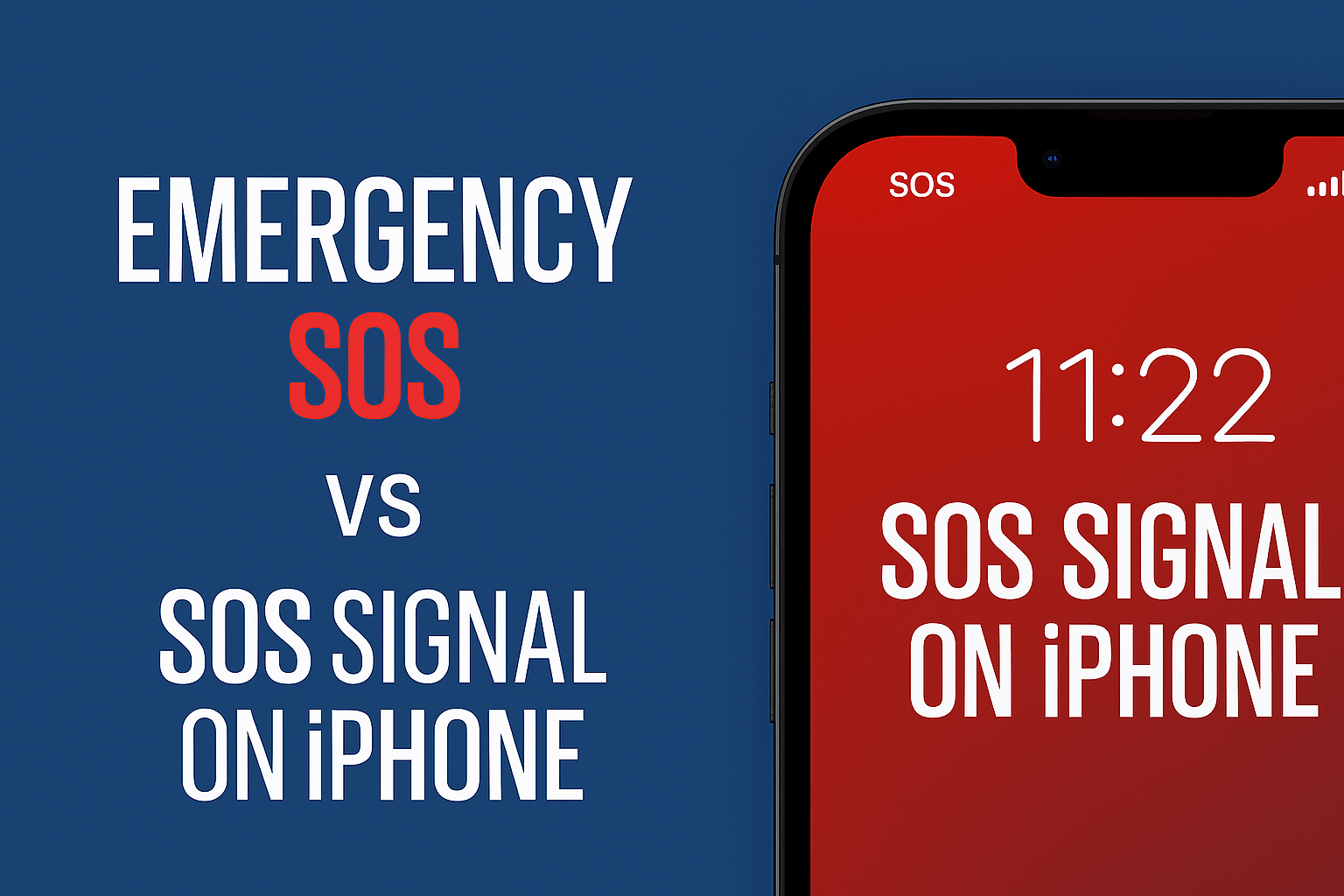
Emergency SOS vs SOS Signal on iPhone
Many iPhone users confuse the SOS signal in the status bar with Apple’s Emergency SOS feature. They are related to safety but work differently.
SOS Signal in the Status Bar
Appears as “SOS” or “SOS Only” at the top of your iPhone screen. Indicates emergency calling mode, meaning your phone has lost regular network service but can still call emergency numbers. Triggered automatically when your iPhone can’t connect to your carrier network.
Limitations:
- Regular calls, messages, and mobile data do not work.
- Only emergency numbers are accessible.
Purpose:
- Alerts you to limited connectivity and keeps emergency calls possible.
Emergency SOS Feature (Manual Activation)
A safety shortcut you can manually trigger:
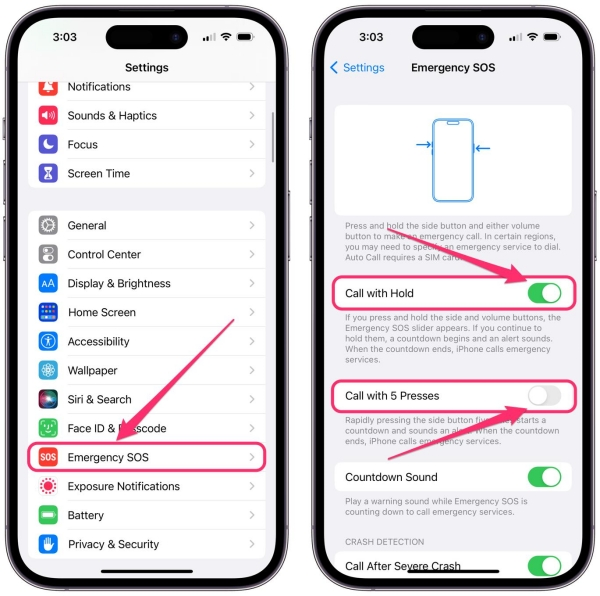
- Press the side button and either volume button on iPhone 8 or later, then slide to call emergency services.
- On older iPhones, rapidly press the side or home button five times.
- Can automatically call emergency services if enabled in settings.
- You can notify your emergency contacts of your location.
- Emergency SOS via Satellite (iPhone 14 and later) is a feature that enables SOS calls when cellular coverage is unavailable.
Key Differences:
|
Feature |
SOS Signal (Status Bar) |
Emergency SOS (Manual/Automatic) |
|
Trigger |
Automatic, due to network issues |
Manual or via the side button emergency call |
|
Function |
Calls emergency numbers only |
Calls emergency numbers + notifies contacts |
|
User Control |
None |
Complete control, can cancel if accidental |
|
Satellite Support |
Only on iPhone 14+ for satellite |
Yes, part of Emergency SOS via satellite |
|
Alerts/Notifications |
None |
Sends location updates to emergency contacts |
SOS Via Satellite (For iPhone 14 and Newer)
Apple introduced SOS via satellite with the iPhone 14 series to provide emergency connectivity when there is no cellular network. This differs from the standard SOS mode, which relies on a carrier network.
How It Works
The iPhone connects directly to a low-orbit satellite. Users can send emergency messages to local services, even in remote areas such as mountains, deserts, or at sea. The feature guides you to point your phone toward the satellite for a stable connection.
Activation
Works automatically when you try to call emergency services and there’s no cellular coverage. It can also be accessed through Emergency SOS in the settings. The iPhone will display on-screen instructions to help establish a connection.
Limitations
Only for true emergencies; it’s not meant for regular texting or calling. Available in select countries and regions. This requires a clear line of sight to the sky; it doesn’t work indoors or underground. The connection is slower than regular cellular networks.
Safety Advantages
Provides an added layer of security for hikers, travelers, and outdoor enthusiasts. It can send your location and emergency info to responders. It reduces the risk of being unreachable in areas with no cellular coverage.
Preventing SOS Issues on iPhone
While SOS mode is a safety feature, frequent appearances can be frustrating. You can reduce occurrences with these steps:
Keep iOS Updated
- Go to Settings > General > Software Update.
- Updates fix bugs that may trigger SOS mode.
Maintain a Good Career Plan
- Ensure your plan supports your area, including roaming if you travel.
- Check with your carrier for coverage maps.
Avoid Damaged SIM Cards
- Replace bent or scratched SIMs.
- Keep the SIM tray clean and properly inserted.
Use Wi-Fi Calling
- Enables calls and texts when cellular service is weak.
- Go to Settings > Cellular > Wi-Fi Calling to activate.
Activate International Roaming Before Travel
- Prevents SOS from only displaying abroad due to carrier restrictions.
- Some carriers require separate roaming plans.
Monitor Signal Strength
- Move to higher ground or near windows if you’re in an area with low signal strength.
- Avoid basements or buildings with thick walls when possible.
Restart iPhone Occasionally
- Helps refresh network connections and reduces glitches that trigger SOS.
Common Misconceptions About SOS on iPhone
Many iPhone users panic when they see ‘SOS’ or ‘SOS only’, but most of their fears are based on misunderstandings. Here are common misconceptions:
SOS Means Your iPhone Is Broken
- False. SOS appears due to network limitations, not hardware failure.
- Most issues resolve with basic troubleshooting.
SOS Indicates Your SIM Card Is Dead
- Rarely is the case.
- Usually, this is a temporary detection issue or a network glitch.
SOS Means You’re Hacked
- Not true. SOS is a built-in emergency feature.
- It does not indicate malware or hacking.
You Can’t Make Any Calls
- Misleading. You can call emergency numbers even if SOS appears.
- This is the core safety function of the SOS mode.
SOS Is Only for iPhone 14 or Newer
- Incorrect. SOS mode exists on older iPhones; the satellite feature is new.
FAQs on SOS Meaning
It means your iPhone has lost connection to your carrier network. You can still call emergency numbers, but regular calls, texts, and mobile data won’t work.
Toggle Airplane Mode on/off.
- Restart your iPhone.
- Check for iOS updates and install them.
- Remove and reinsert your SIM card.
- Reset network settings if needed.
- Contact your carrier or Apple Support if it persists.
Weak cellular coverage or a network outage.
- SIM card detection issues.
- International roaming restrictions.
- Temporary iOS glitches.
No. You can still call local emergency numbers. Only regular calls, texts, and mobile data are unavailable.
Yes. If roaming isn’t enabled, your iPhone may show SOS. Emergency calls will still work.
No. SOS is a built-in safety feature, not a hardware or security issue.
Keep iOS updated.
- Maintain a good career plan.
- Use Wi-Fi calling when possible.
- Replace damaged SIM cards.
- Enable international roaming before travel.
Conclusion
Seeing SOS on iPhone can be alarming, but it’s usually a temporary safety feature, not a sign of damage or hacking. It indicates that your iPhone can make emergency calls only because it has lost standard carrier connectivity.
Most SOS appearances happen due to weak signal, network outages, SIM card issues, or software glitches. Simple steps, such as toggling Airplane Mode, restarting your iPhone, updating iOS, or checking your SIM card, can often restore regular service.
For iPhone 14 and later, Emergency SOS via satellite adds an extra layer of safety, enabling emergency communication even in areas with no network coverage. Understanding the difference between the SOS signal and the Emergency SOS feature helps you respond correctly without panic.
By following preventive measures, such as keeping iOS updated, using Wi-Fi calling, and ensuring proper roaming settings, you can reduce unnecessary SOS alerts and stay connected when it matters most.