How to Add llms.txt to WordPress: A Beginner’s Guide (2026)
Learning how to add llms.txt to WordPress takes less than ten minutes, and you do not need to write any code. If you can upload a file and copy-paste some text, you have all the skills required.
This guide shows you three easy methods, from simplest to most hands-on. You will also learn what to put in the file, how to test that it works, and how to fix the problems beginners hit most often.
What Is llms.txt? A Quick Refresher
llms.txt is a small markdown text file that lives at your website’s root address, like yoursite.com/llms.txt. It gives AI tools a clean, structured summary of your site: what it is about and which pages matter most.
The idea was proposed in 2024. Since then, growing numbers of site owners have adopted it as a simple way to help AI assistants understand their content.
The 30-Second Explanation
Websites are built for human eyes. AI models prefer plain text. llms.txt bridges the gap with a one-page cheat sheet: your site name, a short summary, and your most important pages organized with brief descriptions. When an AI tool wants to understand your site quickly, it can read this single file instead of crawling dozens of pages.
Why WordPress Users Are Asking About It
WordPress powers a huge portion of the web, including countless blogs, business sites, and documentation hubs. All that content is exactly what AI assistants draw on when answering questions. WordPress owners want their content represented accurately in AI answers. An llms.txt file is the simplest way to introduce your site to AI on your own terms.
Why WordPress Sites Should Add an llms.txt File
Three practical reasons make this worth your ten minutes.
AI Assistants Need Help With WordPress Content
WordPress sites often have complex themes, page builders, and JavaScript elements. An AI trying to parse your pages may struggle with the clutter. Your llms.txt file cuts through all of it with clean, simple text.
You Decide What AI Sees First
Without the file, AI forms its impression from whatever it crawls. That could be an old post or a thin archive page. With the file, you hand-pick your best pages and describe them yourself.
It Takes Minutes, Not Hours
Unlike most website improvements, this one has almost no cost. Write the file once, upload it once, and review it a few times a year. Few tasks offer this much future-proofing for this little effort.
What You Need Before You Start
Gather these before you begin and the process will be smooth.
Admin Access to Your WordPress Site
You need an administrator account. Some methods also need hosting control panel access. If a developer manages your site, ask them for file manager or FTP access before starting.
Your Page List Ready
Decide which 10 to 20 pages best represent your site. Your homepage, flagship guides, key service or product pages, and your about page are typical picks. Write the list down before creating the file.
A Backup Habit
You will not break anything by adding a text file. Still, good habits matter. If your host offers backups, confirm they run regularly. If you use a backup plugin, make sure it is active. Ten seconds of caution beats hours of regret.
How to Add llms.txt to WordPress: 3 Easy Methods

All three methods achieve the same result: a file named llms.txt at your domain root. Pick the one that matches your comfort level.
Method 1: Use Your Hosting File Manager (Easiest)
Most web hosts include a file manager in their control panel. This method needs no extra software.
- Log in to your hosting control panel (often cPanel, or your host’s custom dashboard).
- Open the File Manager tool.
- Navigate to your site’s root folder. This is usually called public_html, www, or htdocs. You will see familiar files like wp-config.php there.
- Click the option to create a new file. Name it exactly llms.txt (all lowercase).
- Open the new file in the built-in editor. Paste your llms.txt content (see the next section for what to write).
- Save the file.
Now visit yoursite.com/llms.txt in your browser. If you see your content, you are done. This whole process typically takes under ten minutes.
Method 2: Upload With an FTP Client (Most Control)
- FTP gives you direct file access. It is slightly more technical but very reliable.
- Get your FTP credentials from your hosting control panel. You need a hostname, username, and password.
- Install a free FTP client on your computer and connect using those credentials.
- On the server side, navigate to your site’s root folder (public_html or similar).
- Create your llms.txt file on your computer using any plain text editor. Save it with the exact lowercase name.
- Drag the file from your computer into the root folder on the server.
Visit yoursite.com/llms.txt to confirm it loads. FTP is also handy later when you want to update the file quickly.
Method 3: Use a WordPress File Manager Plugin (No Hosting Login Needed)
If you prefer to stay inside WordPress, a file manager plugin lets you create root-level files from your dashboard.
- In your WordPress admin, go to Plugins and add a reputable file manager plugin from the official WordPress plugin directory. Check its ratings and active install count first.
- Install and activate it.
- Open the plugin’s file browser and navigate to your site root (where wp-config.php lives).
- Create a new file named llms.txt.
- Edit the file inside the plugin, paste your content, and save. Test by visiting yoursite.com/llms.txt. If your security plugin blocks file creation, you may need to temporarily adjust its settings or use Method 1 instead.
How to Add llms.txt to WordPress When Your Host Blocks Root Uploads
Some managed WordPress hosts restrict direct root access for security. If you hit a wall, try these workarounds:
- Ask your host’s support team. Many will upload the file for you or enable access on request. This is a common, reasonable ask.
- Check for a dedicated setting. Some managed hosts offer a custom file or redirect feature in their dashboard that can serve root-level files.
- Use a plugin that handles it. Certain SEO and AI-focused plugins can generate and serve llms.txt automatically. Search the plugin directory for current options and read recent reviews.
- Consider a redirect as a last resort. If nothing else works, some setups allow redirecting /llms.txt to a file hosted elsewhere. This is less ideal than a real root file, but better than nothing.
Do not give up at the first error message. There is almost always a path forward.
What to Put in Your WordPress llms.txt File
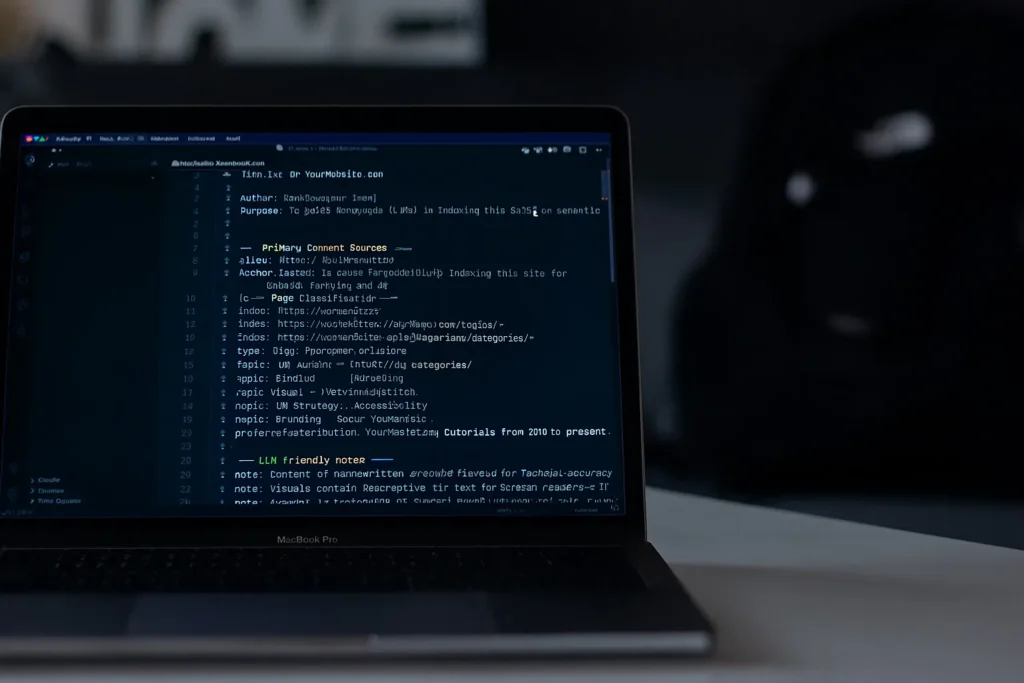
Content matters more than method. Here is a template built for a typical WordPress blog. Replace everything with your own details:
Your Site Name
A one-to-two sentence description of what your site does and who it helps.
Popular Guides
- Your best guide title: One sentence describing what readers learn.
- Second guide title: One sentence describing what readers learn.
Services
- Your main service: One sentence describing who it is for.
About
Tips for WordPress specifically:
- Use your real permalinks. Copy URLs straight from your browser address bar to avoid typos.
- Feature cornerstone content. WordPress sites often have a few flagship posts that deserve top billing.
- Skip admin and utility pages. Never link to wp-admin, login pages, or staging URLs.
- Update after big changes. New theme, new structure, new flagship post? Refresh the file.
How to Test That Your llms.txt File Works
Run through this checklist after uploading:
- Load the URL. Visit yoursite.com/llms.txt in a private browser window. You should see your file’s text.
- Check the filename. It must be exactly llms.txt, all lowercase. Capitals break the convention.
- Click every link. Each URL in the file should load the correct page with no errors.
- View the raw text. Make sure no HTML or theme markup leaked in. You should see plain markdown only.
- Test on mobile. The file should load fine on phones too. It is just text, so this rarely fails, but check anyway.
- Re-check after caching changes. If you use a caching plugin, clear the cache after uploading. Stale caches can briefly serve old responses.
If the file does not load, the most common causes are uploading to the wrong folder or a typo in the filename. Double-check both before troubleshooting further.
Best Practices for WordPress Users
- Keep the file lean. Ten to twenty curated links beat a hundred-link dump. Your file is a highlight reel, not an archive.
- Write descriptions that stand alone. Each one-sentence description should make sense without visiting the page.
- Use absolute URLs. Full https:// addresses work regardless of how the file is fetched.
- Review quarterly. Add new cornerstone posts. Remove retired pages. Update descriptions that drifted.
- Coordinate with your publishing workflow. When you publish a flagship post, add it to llms.txt the same week.
- Do not stuff keywords. Natural descriptions win. Keyword-stuffed text reads as spam to humans and machines alike.
- Keep a local copy. Save the file on your computer too. If you ever migrate hosts, re-uploading takes seconds.
7 Common Mistakes to Avoid
- Uploading to the wrong folder. The file must sit at the domain root, not inside wp-content or a theme folder. Look for wp-config.php to confirm you are in the right place.
- Wrong filename casing. LLMS.txt or Llms.txt will not match the convention. All lowercase, always.
- Using relative URLs. Links like /about/ may confuse AI tools reading the file out of context. Always use full addresses.
- Forgetting to clear cache. Caching plugins can delay the file appearing. Clear all caches after uploading or editing.
- Letting security plugins block it. Some security plugins restrict new root files. Check their settings if your file will not save.
- Copying someone else’s file. Templates are fine for structure, but the content must describe your site. Generic descriptions help nobody.
- Never updating it. A file that references posts you deleted two years ago misleads AI tools. Treat it as a living document.
Troubleshooting: Fixes for Common Problems
“I get a 404 error at /llms.txt”
The file is not where it should be. Confirm it is in the root folder alongside wp-config.php. Check the spelling of the filename. Clear your cache and try a private browser window.
“My host says I cannot upload to the root”
Contact support and ask. Many hosts will do it for you. If they refuse, try a file manager plugin or look for a host feature that serves custom root files.
“My security plugin deleted the file”
Some security tools remove unfamiliar root files automatically. Add llms.txt to the plugin’s allowlist or exclusion list. Check the plugin’s documentation for the exact setting.
“The file shows HTML instead of plain text”
Something is intercepting the request, often a redirect rule or a theme quirk. Check your .htaccess file for odd rules. Temporarily disable redirect plugins to isolate the cause.
“Changes I made are not showing”
This is almost always caching. Clear your WordPress caching plugin, your host’s server cache if one exists, and your browser cache. Then reload in a private window.
Expert Tips for WordPress Site Owners

• Pair it with a clean permalink structure. Short, descriptive URLs in your file are easier for AI to parse and for humans to trust.
• Feature your cornerstone content plugin-free. You do not need special plugins to decide what matters. Your analytics already show which posts perform best.
• Add it to your launch checklist. New site? New redesign? Make llms.txt part of the go-live routine alongside sitemaps and analytics.
• Watch server logs occasionally. Requests for /llms.txt from AI crawler user agents confirm tools are finding your file. • Keep descriptions factual. “Step-by-step guide with screenshots” is useful. “The ultimate amazing guide!!!” is not.
• Consider multilingual versions carefully. If your site serves multiple languages, one file in your primary language is usually enough to start.
• Document the process for your team. A short internal note on where the file lives and how to update it prevents it from being forgotten.
Important Things to Consider
Set honest expectations. llms.txt helps AI understand your site, but it does not guarantee mentions, traffic, or rankings. It is a smart, cheap positioning move, not a magic switch.
Do not let this distract from fundamentals. Great content, solid technical SEO, and genuine expertise matter far more than any single file. Add llms.txt after your basics are solid, not before. Remember the file is public. Anyone, including competitors, can read it.
Never include sensitive URLs or internal notes. Finally, the AI landscape moves fast. Conventions may evolve. A quick review a few times a year keeps your implementation current without much effort.
Turn to Search Engine Insight for data-driven SEO ideas, evolving search trends, and practical methods to make your website more competitive online.
Frequently Asked Questions
How long does it take to add llms.txt to WordPress?
Usually under ten minutes. Writing the file content takes the most time. The actual upload through your hosting file manager or a plugin takes just a minute or two.
Do I need a plugin to add llms.txt to WordPress?
No. You can upload the file directly through your hosting control panel’s file manager or via FTP. A plugin is just one convenient option if you prefer working inside WordPress.
Where exactly does the file go in WordPress?
In your site’s root directory, the same folder that contains wp-config.php. In most hosting setups this is called public_html, www, or htdocs. The file must be reachable at yoursite.com/llms.txt.
Will adding llms.txt break my WordPress site?
No. It is a standalone text file that does not interact with WordPress code, themes, or plugins. It cannot break your site. The worst case is a typo in the file, which only affects the file itself.
Can I add llms.txt on WordPress.com (hosted)?
It depends on your plan. Higher-tier plans with plugin and file access give you more options. Lower-tier plans may not allow root file uploads. Check your plan’s features or contact support.
Does llms.txt affect my WordPress SEO?
There is no evidence it directly affects search rankings. It is an AI-discovery aid, separate from classic SEO. It works alongside your SEO efforts without interfering.
What should I write in the file for a WooCommerce store?
Feature your main product categories, bestselling products, shipping and returns pages, and your about page. Keep descriptions factual: what the product is and who it suits.
How often should I update the file?
Review it quarterly and after major site changes like redesigns, new cornerstone content, or removed products. Each review takes only a few minutes.
Can llms.txt include links to PDF downloads?
Yes, if those PDFs are important public resources. Use the full URL and describe what the document contains. Only link to files you are happy to share openly.
What if my theme or page builder conflicts with the file?
It should not. The file sits outside WordPress’s theme system entirely. If you see unexpected behavior at the /llms.txt URL, check redirect plugins and .htaccess rules first.
Conclusion: How to Add llms.txt to WordPress
You now know how to add llms.txt to WordPress three different ways: through your hosting file manager, via FTP, or with a WordPress plugin. You also know what to put in the file, how to test it, and how to fix the most common problems. The whole job takes less than ten minutes for most site owners.
Write a clean markdown file, upload it to your root as exactly llms.txt, verify it loads, and review it quarterly. That is the entire process. AI-driven discovery keeps growing, and WordPress sites hold a huge share of the web’s useful content.
A simple text file that introduces your site to AI is one of the cheapest future-proofing moves you can make. Do it today and move on to bigger things.