How to Block Someone on TikTok? Easy Ways 2025 (Updated)

How to Block Someone on TikTok? Easy Ways 2025 (Updated)
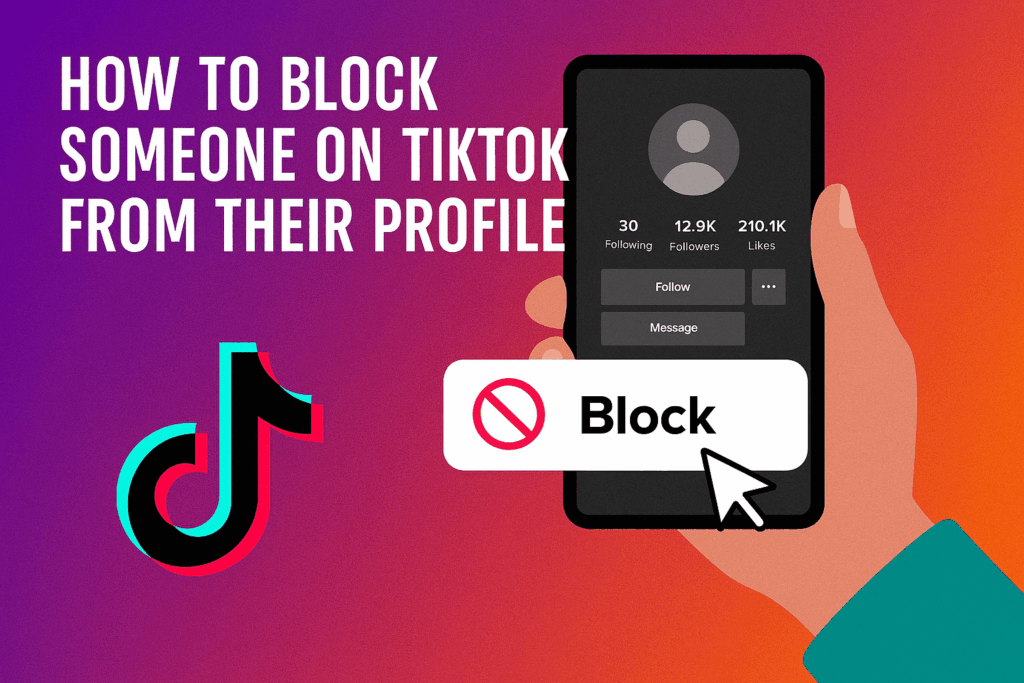
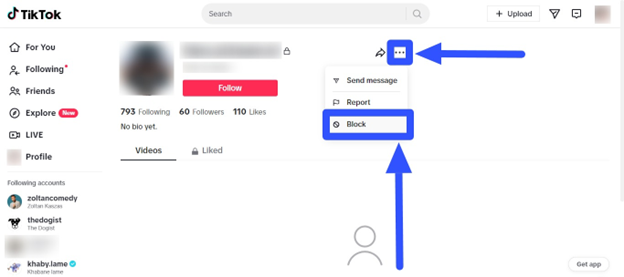
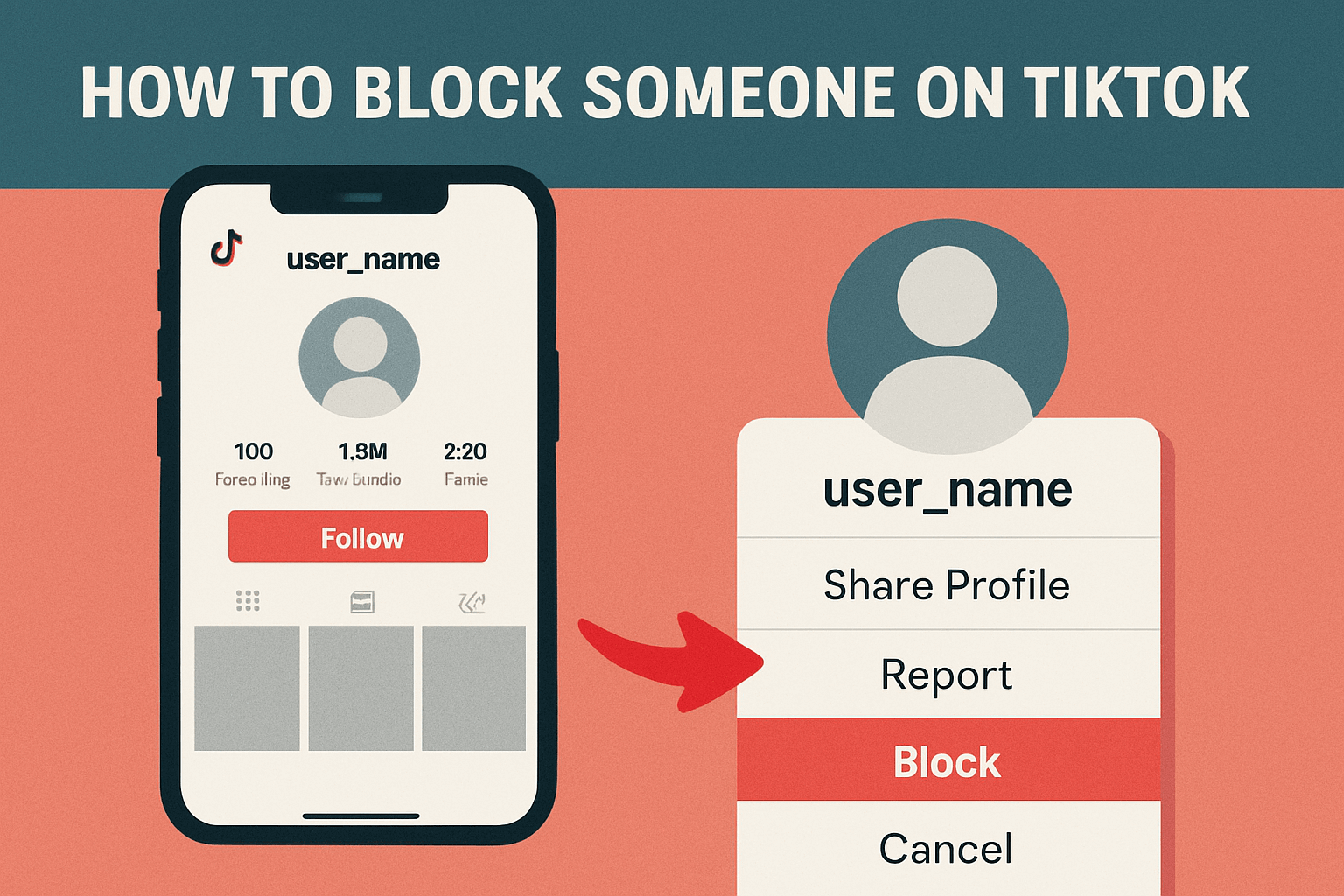
To block someone on TikTok, go to their profile, tap the three-dot icon in the top-right corner, and select “Block” from the menu. This will prevent them from viewing your content, messaging you, or seeing your profile.

Ever had someone on TikTok who just won’t stop popping up in your feed, spamming your comments, or sliding into your DMs? It can turn a fun scroll into a frustrating experience in a matter of seconds. The empowering news? TikTok gives you the power to take control of your account by blocking people you don’t want to interact with, ensuring your space is safe and secure.

Blocking someone on TikTok is more than just a digital “ignore” button — it’s a privacy tool that keeps your space safe, comfortable, and drama-free. Whether it’s a stranger posting annoying comments, a friend you need distance from, or even a troll trying to get a reaction, knowing how to block on TikTok ensures your feed stays the way you want it. It’s all about you and your comfort, giving you the power to control your interactions.

In this guide, you’ll learn exactly how to block someone on TikTok step by step. We’ll also cover what happens when you block someone and how to unblock them. So, if you’re ready to enjoy TikTok without the noise, let’s dive into the ultimate guide to blocking people on TikTok.

Table of Contents

3 Quick Ways to Block Someone on TikTok

If you don’t have time to read the complete guide and just want the fast steps, here’s your quick-start cheat sheet. Blocking on TikTok can be done in three simple ways:

1.    From Their Profile

  • Go to the user’s profile.
  • Tap the three dots/share icon in the top-right corner.
  • Select Block → confirm.

2.    From Messages (Inbox/DMs)

  • Open your Inbox.
  • iOS: swipe left on the chat → tap More → choose Block.
  • Android: press and hold the chat → tap Block.

3.    From Comments (Bulk Blocking Option)

  • Open the comments on your video.
  • Press and hold on a comment → tap Manage multiple comments.
  • Select the accounts you want gone → tap Block accounts.

Read More: What is Xaller?

How to Block Someone on TikTok from Their Profile

Block Someone on TikTok from Their Profile

Blocking a TikTok account from their profile is the most straightforward and commonly used method. Whether it’s a random stranger, a spam account, or even someone you know, you can cut off interaction in just a few taps. Here’s how:

Step 1: Open TikTok and Find the User

  • Launch the TikTok app on your phone.
  • Type the username into the search bar or tap on their name if it shows up in your comments, likes, or DMs.
  • This will take you straight to their profile page.

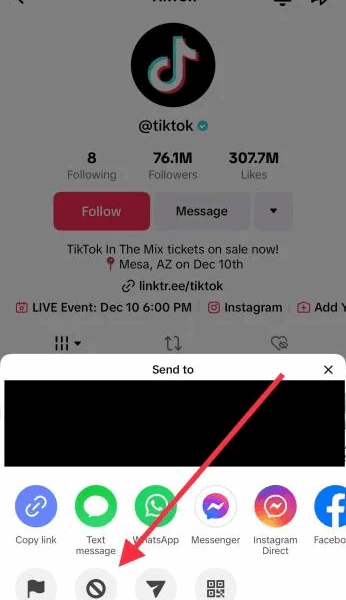
Step 2: Tap the Three Dots (or Share Icon)
How to Block Someone on TikTok from Their Profile

  • On the top-right corner of their profile, look for the three dots (sometimes displayed as a share arrow, depending on your TikTok version).
  • Tap it to open a menu of options.

Step 3: Select “Block”

  • In the menu, scroll down until you see the “Block” option.
  • Tap it → TikTok will ask you to confirm.

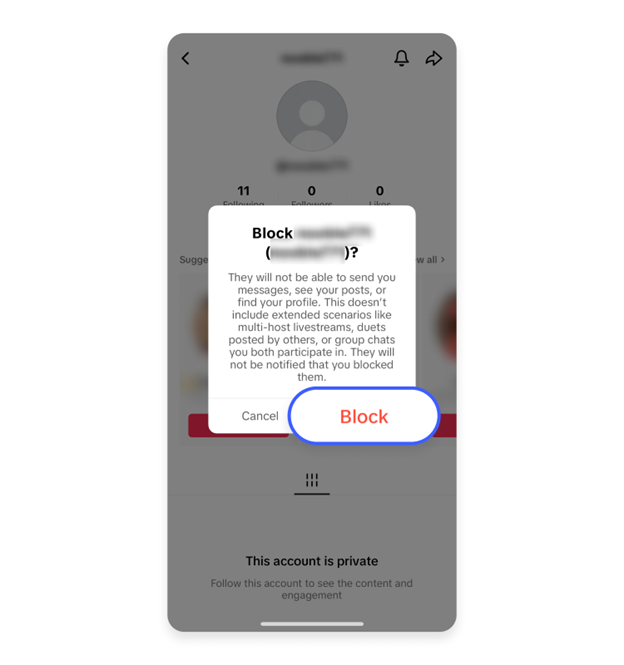
Step 4: Confirm the Action

  • Tap Confirm.
  • You’ll see a pop-up message that says: “This user will no longer be able to follow you, message you, or interact with your content.”
How to Block Someone on TikTok from Messages (Inbox/DMs)

Sometimes the people you want to block are the ones cluttering your Inbox with unwanted messages. Instead of searching for their profile, TikTok lets you block them directly from your chat list. The steps are slightly different for iPhone and Android users, so here’s the breakdown:

For iPhone (iOS) Users

  • Open the TikTok app and go to your Inbox.
  • Find the chat from the person you want to block.
  • Swipe left on the conversation.
  • Tap More → then select Block.
  • Confirm the block action when TikTok asks.

For Android Users

  • Open the TikTok app and tap on your Inbox.
  • Locate the chat of the user you want to block.
  • Press and hold down on the conversation.
  • A menu will pop up → choose Block.
  • Confirm the block.

Read More: What is SnapTik

How to Block Someone on TikTok via Comments (Including Bulk Blocking)

How to Block Someone on TikTok via Comments (Including Bulk Blocking)

Sometimes the most significant headache on TikTok isn’t in your inbox — it’s in the comments section. Trolls, spam bots, and rude users love to leave annoying remarks. Luckily, TikTok lets you block directly from comments, and even better, you can block multiple accounts at once.

Method 1: Block a Single User from Comments

  • Open the TikTok app and go to your video.
  • Scroll down to the comments section.
  • Find the unwanted comment.
  • Press and hold on that comment until a menu pops up.
  • Tap Block → confirm.

Method 2: Block Multiple Users at Once (Bulk Blocking)

If several accounts are leaving spam or offensive comments:

  • Open your TikTok video and navigate to the comments section.
  • Press and hold on any comment.
  • Select Manage multiple comments.
  • Tap on up to 100 accounts you want to block.
  • Tap More → choose Block accounts → confirm.

What Happens When You Block Someone on TikTok?

Will They Know You Blocked Them

Blocking someone on TikTok isn’t merely about ending contact — it also alters their ability to interact with you on the platform. If you’ve ever wondered, “Will they know I blocked them? Can they still see my content?” — Here’s what you need to know:

What a Blocked User Can’t Do

Once you block someone on TikTok, they will no longer be able to:

  • View your profile or search for you.
  • Watch any of your videos or see your likes.
  • Decide whether to follow you or send you a follow request.
  • Send you direct messages.
  • Comment on your videos.
  • Tag or mention you in posts.

Exceptions to Keep in Mind

However, it’s important to note that even after blocking, there are a few situations where limited interaction is still possible:

  • If the blocked user previously left comments on your videos, those comments will remain unless you delete them.
  • If you and the blocked user are both in the same group chat, their old messages may still be visible.
  • If someone else uses your video for a duet or stitch, the blocked person may still see that video since it’s technically another creator’s content.

Will They Know You Blocked Them?

  • TikTok does not notify users when they’re blocked.
  • However, the person may realize it on their own when they try to visit your profile and can’t find you, or when their messages stop going through.

What Happens on Your End

  • The user’s profile and content won’t appear in your feed.
  • Your account becomes completely invisible to them.
  • You can still unblock them at any time if you change your mind.

How to Unblock or Manage Blocked Accounts on TikTok

Sometimes blocking is permanent, but other times you may want to give someone a second chance. TikTok makes it easy to view all blocked accounts in one place and unblock them if needed. Here’s how:

Method 1: Unblock Someone Directly from Their Profile

  • Open TikTok and search for the user by their username (if you still remember it).
  • Go to their profile page.
  • Where the Follow button is typically, you’ll see Unblock instead.
  • Tap Unblock → confirm.

Method 2: Manage Blocked Accounts from Settings

If you don’t remember usernames or want to see your entire block list:

  • Open TikTok and go to your Profile.
  • Tap the three lines (☰) in the top-right corner to open Settings & privacy.
  • Select Privacy.
  • Scroll down and tap Blocked accounts.
  • Here you’ll see a complete list of everyone you’ve blocked.
  • Tap Unblock next to any user you want to restore.

Alternatives to Blocking on TikTok

Alternatives to Blocking on TikTok

Blocking is a strong step, but TikTok also provides you with other tools to control who sees your content and how they interact with you. These options are helpful if you’d prefer a softer approach than outright blocking.

1.    Make Your Account Private

  • Go to Profile → Settings & privacy → Privacy → Private account.
  • With a private account, only people you approve can follow you and view your videos.
  • Excellent for cutting out unwanted attention without blocking specific individuals.

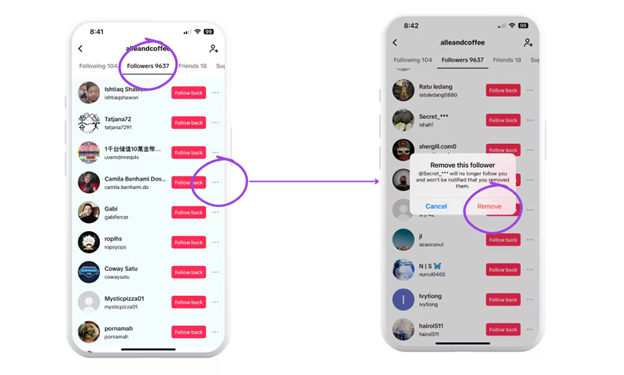
2.    Remove a Follower

  • Open your Followers list.
  • Tap the three dots (or options) next to the follower you want to remove.
  • Select Remove this follower.

3.    Restrict or Limit Messages

  • Go to Settings & privacy → Privacy → Direct messages.
  • Choose who can message you: Everyone, Friends, Suggested friends, or No one.
  • This helps stop random DMs while still allowing friends to reach you.

4.    Filter and Limit Comments

In Privacy → Comments, you can:

  • Allow comments from Everyone, Friends, or No one.
  • Use comment filters to block certain words.
  • Hold comments for review before they appear.

5.    Use Restricted Mode (For Teens & Parents)

  • Found in Settings & privacy → Content & display → Restricted mode.
  • Limits mature or inappropriate content.
  • Often paired with Family Pairing for parental control.

Frequently Asked Questions

❌ No. TikTok does not send notifications when you block someone. However, the person may figure it out if they can’t view your videos, message you, or find your account anymore.

Once blocked, the user can no longer see your profile, videos, or comments. Old likes or comments you left on their posts may remain visible to them, but they can’t interact with you further.

Sometimes TikTok temporarily caches profiles. If you still see their name, clear your cache in TikTok settings or restart the app.

✅ Yes. You can block them directly from:

Inbox (messages) by swiping or holding the chat.

Comments section by pressing and holding their comment.

Bulk block by selecting multiple accounts at once.

Block: The user cannot see your profile, videos, or message you.
Remove Follower: The user can’t follow you, but they may still find your profile and videos, unless your account is set to private.

Conclusion: Blocking someone on TikTok

Blocking someone on TikTok

Blocking someone on TikTok involves more than just clicking a button — it’s about asserting control over your digital environment. Whether it’s spam accounts, online bullies, or individuals you prefer not to interact with, TikTok provides several options to block, unblock, or manage unwanted interactions.

TikTok provides options like blocking profiles, messages, or comments, and managing your blocked list, giving you control over who can see your content. If blocking seems too harsh, consider making your account private, removing followers, or adjusting your privacy settings to a more suitable level.

TikTok should ultimately be a fun, creative, and positive space. By understanding how to block users and utilizing privacy features, you can safeguard your mental health, reduce negativity, and enjoy the app as it was intended.

Add a Comment

Your email address will not be published.