

How to Clear Instagram Search Suggestions? (2025 Easy Fix)
Instagram has become one of the most popular social platforms in 2025, but if you’ve ever noticed old searches or unwanted profiles popping up in your search bar, you’re not alone. These Instagram search suggestions are powered by your past activity, interactions, and even contacts synced to your account. While they can be helpful for quickly finding people or pages you follow, they often become annoying—or even a privacy concern—when irrelevant or outdated searches keep showing up. This can lead to potential privacy issues, as others might see your past searches or you might be recommended profiles you’d rather keep private.
The empowering news is that you have complete control over what appears in your search bar. Whether you want to clear Instagram search history, reset suggested content, or remove contact-based suggestions, there are multiple easy fixes available.
In this 2025 updated guide, we’ll walk you through step-by-step methods to clear Instagram search suggestions on iPhone, Android, and desktop, giving you the power to stop them from coming back and make your Instagram experience truly yours.
Table of Contents
Why Instagram Shows Search Suggestions?

Instagram’s search suggestions are not random. In 2025, the app uses a mix of your activity, interests, and account data to recommend profiles, hashtags, and posts you might want to explore. This feature is designed to enhance your experience, but it can sometimes feel intrusive if you keep seeing accounts or searches you’d rather forget.
Here are the main reasons why Instagram shows search suggestions:
● Your Search History
Instagram remembers the profiles, hashtags, and places you’ve looked up before. This history influences what pops up in your search bar, so you can easily revisit recent searches.
● Your Interactions
The algorithm studies who you follow, like, or comment on. If you often engage with a specific type of content, Instagram may suggest similar accounts.
● Synced Contacts
If you’ve synced your phone contacts, Instagram uses that data to suggest people you might know—even if you’ve never searched for them.
● Location & Popular Accounts
Instagram also suggests trending accounts, reels, or hashtags based on your location or global popularity.
● Algorithmic Recommendations
Even without direct searches, Instagram predicts what you might like by analyzing your overall activity and interests across the app.
Methods to Clear Instagram Search Suggestions in 2025

Instagram’s system stores your past activity, interactions, and suggested accounts, but with the proper steps, you can clear them out and refresh your experience. Below, we’ll go through the most effective methods in 2025 to reset your search suggestions, improve privacy, and make your app feel brand new.
Method 1 – Clear Instagram Search History
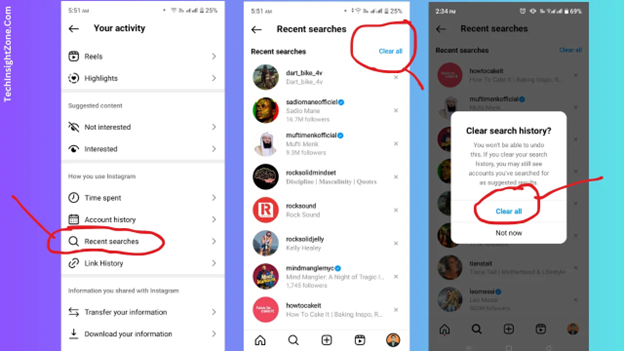
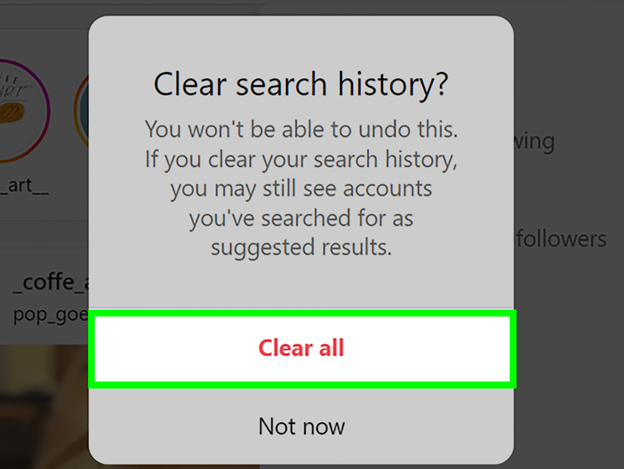
The easiest way to get rid of unwanted suggestions is by clearing your Instagram search history. This wipes out the list of recent accounts, hashtags, or places you’ve searched for and prevents them from showing up in your search bar.
● On iPhone & Android
Instagram has updated its settings in 2025, so the option is now found inside the Accounts Center. Here’s how to clear all searches with just a few taps:
- Open the Instagram app and go to your Profile.
- Click the ☰ menu icon (three horizontal lines) located in the top-right corner.
- Select Settings & activity.
- Scroll down and tap the Accounts Center.
- Go to Your information & permissions.
- Select Search history.
- Choose Clear all searches and confirm.
● On Desktop/Web
If you’re using Instagram on a browser, the process is slightly different but just as simple:
- Log in to Instagram from your browser.
- Click on your Profile icon at the top-right.
- Go to Settings.
- Select Accounts Center.
- Click Your information & permissions → Search history.
- Press Clear all searches.
Why This Matters
Clearing your search history is the first step to removing Instagram search suggestions. However, keep in mind that this only deletes your past searches. If you want to reset the type of recommendations Instagram shows (like Explore or Reels suggestions), you’ll need to use the Reset Suggested Content option, which we’ll cover in the following method.
Method 2 – Reset Suggested Content
Even after clearing your search history, Instagram may still show you posts, reels, or profiles that don’t interest you. This is because search history and suggested content are two different things. While history is about what you look up, suggested content is what Instagram’s algorithm thinks you might enjoy based on your interactions, likes, follows, and watch time. If you want a fresh start, the best option is to reset suggested content. This wipes Instagram’s recommendation signals, so you’ll stop seeing irrelevant or repetitive suggestions, giving you a clean slate and a more personalized experience.
If you want a fresh start, the best option is to reset suggested content. This wipes Instagram’s recommendation signals, so you’ll stop seeing irrelevant or repetitive suggestions.
● Steps to Reset Suggested Content (iPhone & Android – 2025 update)
- Open the Instagram app and go to your Profile.
- Tap the ☰ menu (three lines) in the upper-right corner.
- Select Settings & activity.
- Scroll to Content preferences.
- Tap Reset suggested content.
- Confirm by selecting Reset.
Why This Step is Important
Many users clear their search history but forget to reset suggested content, which is why unwanted profiles and posts keep popping up. Doing both ensures you fully clear Instagram search suggestions and get a clean slate in 2025, giving you the control to curate your Instagram experience.
Method 3 – Remove Individual Suggestions While Typing
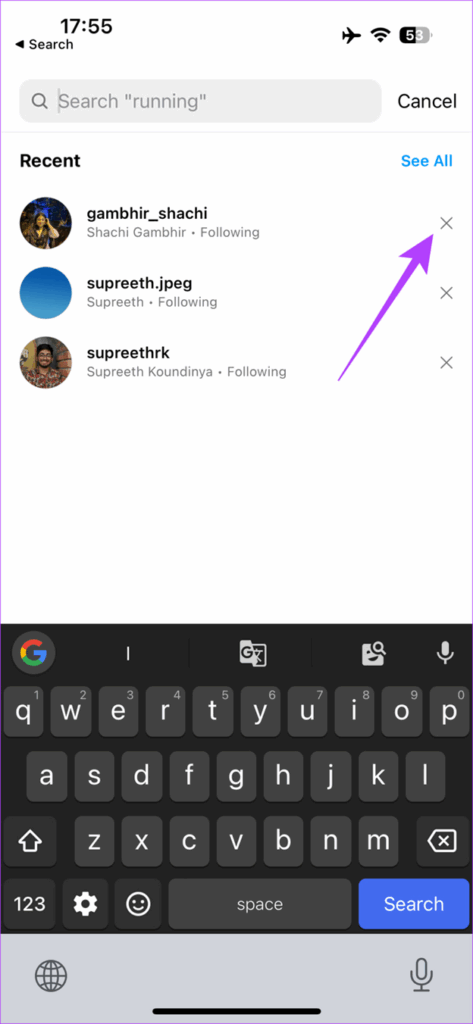
Not everyone wants to clear their entire search history or reset all suggestions. Sometimes, you just want to remove a single search term or profile that keeps showing up whenever you type in the search bar. Luckily, Instagram makes it simple to delete individual items. This method is perfect if you only want to hide one or two searches without erasing your whole history. It gives you more control, so you can keep helpful suggestions while removing the irrelevant ones. Plus, it’s faster than going into settings if you’re just cleaning up a few results.
● Steps to Remove One-by-One Suggestions
- Open the Instagram app and tap the Search icon (magnifying glass).
- Tap on the Search bar at the top.
- You’ll see a list of Recent searches and suggested accounts.
- Find the account, hashtag, or place you no longer want to see.
- Tap the × icon next to it.
- That’s it—Instagram will instantly remove that item from your suggestions.
Why Use This Method?
It’s perfect if you only want to hide one or two searches without erasing your whole history. It gives you more control, so you can keep helpful suggestions while removing the irrelevant ones. It’s faster than going into settings if you’re just cleaning up a few results.
Method 4 – Stop Contact-Based Suggestions
One of the most common complaints about Instagram search suggestions is seeing people you know in real life—like coworkers, classmates, or distant relatives—even if you’ve never searched for them. This usually happens because Instagram uses your phone contacts to suggest accounts.
If you don’t want Instagram to recommend people from your contact list, you need to turn off contact syncing and delete any contacts that were already uploaded to Instagram’s servers.
● Step 1: Turn Off Contact Syncing (iPhone & Android)
- Open the Instagram app and navigate to your Profile.
- Then, tap the ☰ menu (three lines) located at the top-right corner.
- Go to Settings & activity.
- Scroll down to Account settings.
- Select Sync contacts.
- Toggle Sync contacts off.
Turning this off stops Instagram from pulling in new contacts, but it does not remove the contacts that were already uploaded.
● Step 2: Delete Previously Synced Contacts (Web/Browser)
- Log in to Instagram from a web browser.
- Click your Profile icon and go to Settings.
- Select Manage contacts (this option is usually only available on the web).
- Click Delete all to remove any stored contacts.
Why This Step is Important
If you’ve ever allowed Instagram to access your contacts, those numbers and emails may still be saved. Simply turning off syncing won’t erase them—you have to delete them online manually. Once removed, Instagram will stop suggesting people based on your phone contacts, giving you more privacy and control.
Method 5 – Remove "Suggested for You" Profiles
Besides the search bar, Instagram often shows a row of “Suggested for You” profiles—usually under your followers list or while you’re browsing other accounts. These are Instagram’s way of recommending people you might want to follow, but they can feel repetitive or irrelevant.
If you’re tired of seeing them, you can remove these suggestions one by one or even turn them off entirely on the desktop.
● Option 1: Hide Suggestions in the App (iPhone & Android)
- Go to your Profile and scroll down until you see Suggested for You.
- Tap to see all to expand the list.
- Find the profile you don’t want to see.
- Tap the small × (cross icon) next to it.
This removes that suggestion instantly. You might continue to see new suggestions later, but at least you’ll be able to remove the unwanted ones as they appear.
● Option 2: Turn Off Account Suggestions on Desktop/Web
If you don’t want Instagram to show suggestions on your profile at all, you can disable them through the browser:
- Log in to Instagram.com on a computer.
- Go to your Profile and click Edit Profile.
- Scroll down to find “Show account suggestions on profiles.”
- Uncheck the box and hit Submit.
Why This Helps
This stops random profiles from showing under your account. As a result, it will keep your profile page cleaner and more private. This is especially helpful if you want to keep your account private from people outside your circle.
Method 6 – Clear Instagram Cache & App Data

Sometimes, even after clearing your search history and resetting suggested content, old suggestions may still show up. This usually happens because of cached data stored on your device. Instagram keeps temporary files on your phone to make the app run faster, but outdated cache can cause suggestions (and even old searches) to resurface.
The fix? Clear the Instagram cache.
● On Android (Clear Cache Without Losing Data)
- Open your phone’s Settings.
- Go to Apps or App Management.
- Find and tap Instagram.
- Tap Storage & cache (name may vary depending on your phone).
- Tap Clear cache.
This deletes temporary files but won’t log you out or erase your account data. It’s the safest option for a quick refresh.
● On Android (Clear Data for a Full Reset)
- In the same menu, you’ll also see Clear data.
- Choosing this will reset the Instagram app completely—you’ll be logged out and all saved settings will be removed.
- Only use this if clearing the cache alone doesn’t solve the problem.
● On iPhone (No Direct Cache Option)
Unlike Android, iPhones don’t have a “Clear cache” button. Instead, you have two options:
- Offload the Instagram App
- Go to Settings > General > iPhone Storage > Instagram.
- Tap Offload App.
- This removes the app but keeps your account data.
- When you reinstall, the app gets fresh storage.
- Delete & Reinstall Instagram
- Press and hold the Instagram app, then select Remove App and confirm deletion.
- Reinstall from the App Store.
- This completely clears stored data but requires you to log in again.
Why Clearing Cache Helps
This removes old data that may continue to show unwanted suggestions. Moreover, it refreshes the app, making your search bar and Explore page update faster. This can also fix minor app glitches beyond just search issues.
Method 7 – Fine-Tune Your Instagram Recommendations
Clearing search history and cache will wipe out old suggestions, but if you want Instagram to show you better recommendations in the future, you’ll need to train the algorithm. Instagram learns from your interactions—so the more you guide it, the cleaner and more relevant your search suggestions and Explore page will become.
Here’s how you can fine-tune your recommendations:
● Use the “Not Interested” Option
- Whenever you see a post or reel that feels irrelevant, tap the ⋮ (three dots) on the post.
- Select Not Interested.
- Instagram will instantly reduce similar recommendations.
The more you use this option, the more personalized your feed and search suggestions become.
● Adjust Content Preferences
- Go to your Profile → ☰ menu (three lines) → Settings & activity.
- Select Content preferences.
- Here you can adjust filters for Sensitive Content and reset content signals whenever needed.
Why This Step Matters
Instead of just clearing everything, you’re shaping Instagram’s algorithm to work for you. Over time, this prevents irrelevant profiles, hashtags, or reels from filling up your search suggestions. It’s the best way to keep Instagram enjoyable and tailored to your current interests in 2025.
Troubleshooting – When Instagram Suggestions Don't Go Away

Sometimes, even after clearing your search history, Instagram suggestions may keep reappearing. This can be frustrating, but it usually happens for a few technical reasons. Here’s why it occurs and what you can do:
● Reasons Why They Reappear
Instagram’s algorithm pulls from multiple signals—not just your search history. This includes accounts you follow, posts you like, reels you watch, and even synced contacts. If you’ve only cleared history but not suggested content or contacts, Instagram may still recycle old data.
● Server-Side Refresh Delay
Instagram stores data on its servers, so sometimes changes don’t apply instantly. You may still see old suggestions for a few hours (or even a day) until Instagram fully refreshes your profile. Don’t panic—this is temporary, and your cleared history usually takes effect after some time.
● Importance of Clearing Both History and Suggested Content
Many people clear only search history but forget to reset suggested content signals. You need to do both for a proper reset:
Search History → Profile > Settings & activity > Search history > Clear all
Suggested Content → Profile > Settings > Suggested Content > Reset
● Last Resort: Logout or Reinstall the App
If suggestions still won’t go away, try:
Logging out and back in.
Clearing your cache (Android) or Offloading/Reinstalling (iPhone).
Reinstalling forces Instagram to re-sync with the latest server data and wipes stored app cache completely.
Conclusion:

Instagram’s search suggestions can be helpful at times, but for many users in 2025, they feel more like clutter and privacy concerns than a helpful feature. The good news is—you’re not stuck with them. By combining the methods we’ve covered—clearing search history, resetting suggested content, managing “Not Interested” tags, removing suggested profiles, and even wiping app cache—you can take back control over what shows up in your Instagram search bar.
For improved privacy and a smoother experience, regularly clear your suggestions and review your settings. Instagram may keep evolving, but with the proper steps, you can keep your feed, search bar, and recommendations aligned with your interests.
Frequently Asked Questions:
Instagram’s algorithm doesn’t just look at who you follow—it also considers mutual connections, synced contacts, interactions (likes, comments, DMs), and trending content. That’s why you sometimes see strangers or “Suggested for you” search accounts.
No. Clearing search history only removes your recent searches. Suggestions may still appear because Instagram also uses recommended accounts, interests, and server data. To fully reset, you also need to reset suggested content and specific cached data.
Yes. On your desktop, navigate to Profile > Edit Profile > Show account suggestions on profiles and uncheck the box. This prevents Instagram from recommending your account to people who follow similar profiles.
It depends. If you reinstall, cached data is cleared—but Instagram’s server-based recommendations (like friends-of-friends, mutuals, or interests) may still return. To reduce this, also turn off contact syncing and reset suggested content.
Yes, in a positive way. Clearing suggestions helps reduce the amount of personalized data Instagram uses for recommendations. It won’t make your account invisible, but it does give you more control over what appears in your feed and search.