How to Stop Instagram From Saving Posts to Camera Roll (iPhone & Android)
If you have ever opened your phone’s camera roll only to find it overflowing with Instagram duplicates — the same selfies, videos, and Reels you’ve already posted — you’re not alone. By default, Instagram has an auto-save feature that stores every post you upload directly to your device’s gallery or Photos app.
While Instagram’s auto-save feature can be convenient for backup purposes, it can also be annoying, especially if you are tight on storage space or prefer keeping your gallery neat. This happens whether you’re using Instagram on iPhone or Instagram on Android. The app automatically saves original photos and videos you post, stories you create and share, and the reels you make.
The good news? You can stop Instagram from saving posts to your camera roll with just a few quick changes in your settings. This step-by-step guide, designed for your convenience, will show you exactly how to stop Instagram from saving posts to your camera roll on both iPhone and Android. We’ll also cover how to manage stories, reels, and troubleshooting tips so your gallery stays clutter-free.
Whether you’re trying to free up storage space, reduce duplicate files, or simply take control of what’s stored on your device, this tutorial will empower you to turn off Instagram auto-save once and for all, giving you the relief of a clutter-free gallery.
Why Instagram Saves Posts to Your Camera Roll?
Before you learn how to stop Instagram from saving posts in your phone’s gallery, it’s essential to understand why this occurs in the first place. The auto-save feature of Instagram is enabled by default on both iPhone and Android. This setting automatically stores a copy of your uploaded content in your device’s gallery (Android) or Photos app (iPhone).
When auto-save is turned on, Instagram can store:
Original photos you take with your phone camera and upload to Instagram
Videos you record and post
Stories you create and share
Reels you produce in-app
So, every time you share something, there’s an extra copy saved locally, which means two versions of the same file: one in Instagram and one in your camera roll.
Table of Contents
Reason Why Instagram Save Your Posts, Stories, and Reels?
Instagram’s habit of saving your posts, stories, and reels directly to your camera roll isn’t just random — it’s a feature built for its users for convenience. Whether you’re on iPhone or Android, the Instagram auto-save option is enabled by default, meaning the moment you post something, the app instantly stores a copy in your Photos app (iOS) or Gallery (Android).
From Instagram’s perspective, this aims to enhance your user experience without cluttering your phone. Here’s why they implement it:
Backup and Security
Instagram knows that social media content isn’t permanent. It means you might accidentally delete a post. Another reason is that your account could get hacked or locked. Last but not least, the app could glitch and lose data.
By saving a copy locally, Instagram ensures you always have the original high-quality version — even if it disappears from your profile. This acts as a personal backup system, especially for users who treat Instagram as a photo journal.
Editing and Reposting Flexibility
Sometimes, you post a photo or video and later wish you could apply a different filter or you could crop it differently. And you might use it for another social platform (Facebook, TikTok, etc.).
With auto-save enabled, you don’t have to search Instagram for a compressed copy — you already have the full-resolution file in your camera roll, ready to edit and re-share.
Offline Access to Your Content
If you’re traveling, have limited mobile data, or temporarily lose internet access, you can still view your photos and videos in your gallery. This is especially useful for:
Content creators who need access to their work on the go.
Users in areas with unstable internet connections.
People who prefer to browse their photos without using the app.
Cross-Platform Sharing
Instagram knows that users often want to post duplicate content on multiple platforms. By automatically saving your posts, you can upload them to WhatsApp, Snapchat, Twitter (X), or Facebook instantly. Moreover, you don’t have to re-download your content from Instagram, which would lower the quality.
Encouraging More Engagement
From a marketing planning software perspective, Instagram benefits when you create and share more content, even outside their app. If your post is already sitting in your camera roll, you’re more likely to:
Re-share it on stories.
Send it to friends via DMs.
Post it on other platforms.
All of these keep you more engaged with your content, which indirectly keeps you coming back to Instagram.
Why You Might Want to Turn It Off Instagram Posts?
If you’re searching for how to stop Instagram saving photos automatically or turn off Instagram auto-save on Android/iPhone, you probably have one (or more) of these concerns:
Storage Space Problems
High-resolution photos and 4K videos can slow down your device or force you to delete important files.
Duplicate Clutter
Your gallery becomes disorganized with repeated files, that makes it harder to find the pictures you need.
Privacy Concerns
If someone scrolls through your camera roll, they’ll see every Instagram post you’ve made, even ones you might prefer to keep private. By turning off this feature, you regain control over your privacy and the content you share.
Luckily, turning this feature off is quick and easy, and you can still choose to save only the posts you want.
Stop Instagram from Saving Posts to Camera Roll on iPhone
If you use Instagram on an iPhone, you might have noticed that every photo, video, or story you post automatically appears in your Photos app. While this can be convenient, it often clutters your camera roll and eats up precious iPhone storage.
The good news? You can turn off Instagram auto-save in just a few taps. Here’s the complete guide:
Step 1: Open the Instagram App
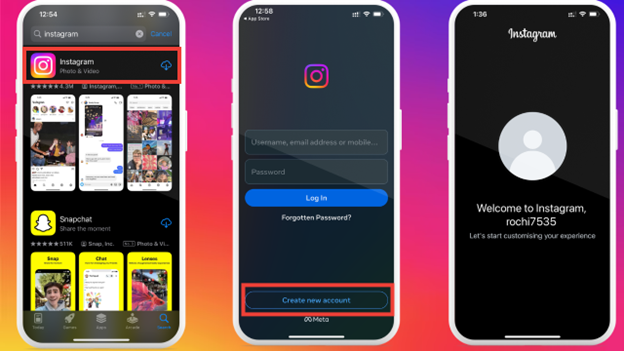
Locate the Instagram icon on your iPhone’s home screen and tap it to open.
Make sure you’re logged into the account you want to adjust.
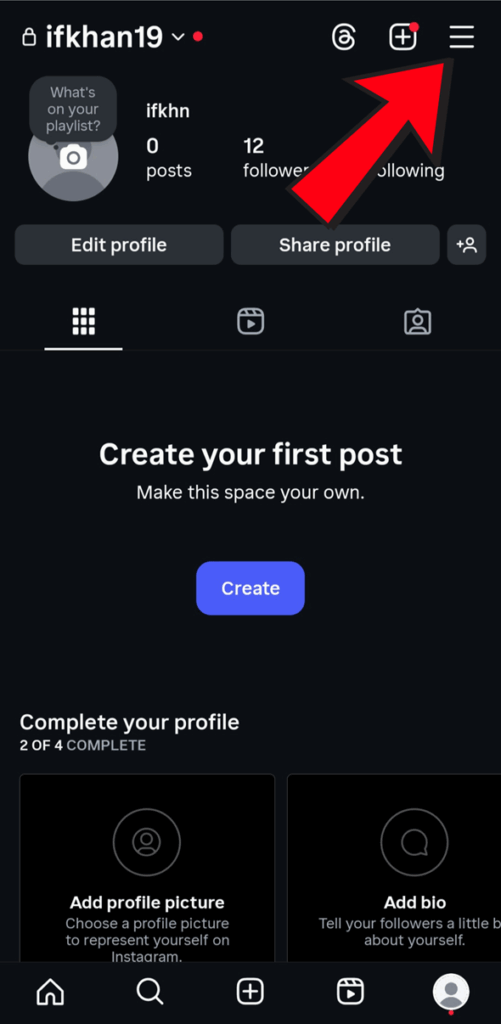
Step 2: Go to Your Profile
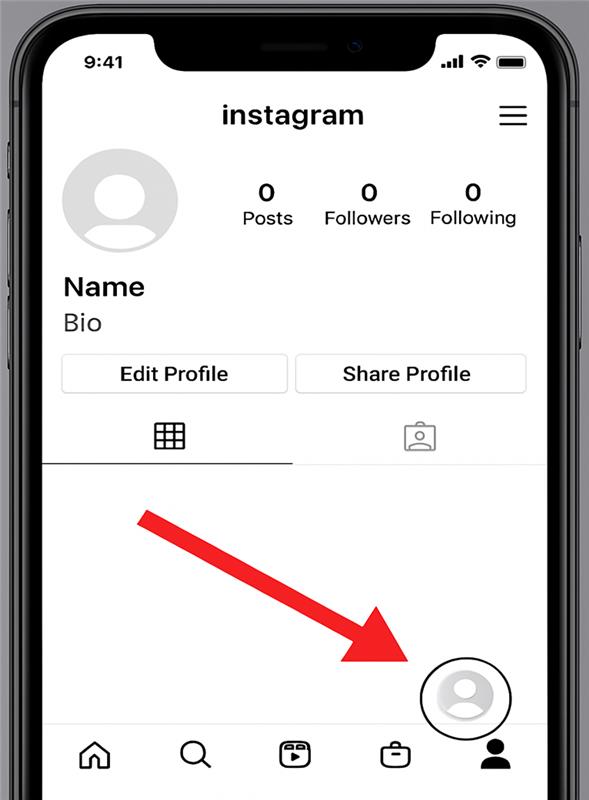
Tap your profile picture in the bottom-right corner of the screen.
Afterwards, the screen shows your Instagram profile page, where you can access settings.
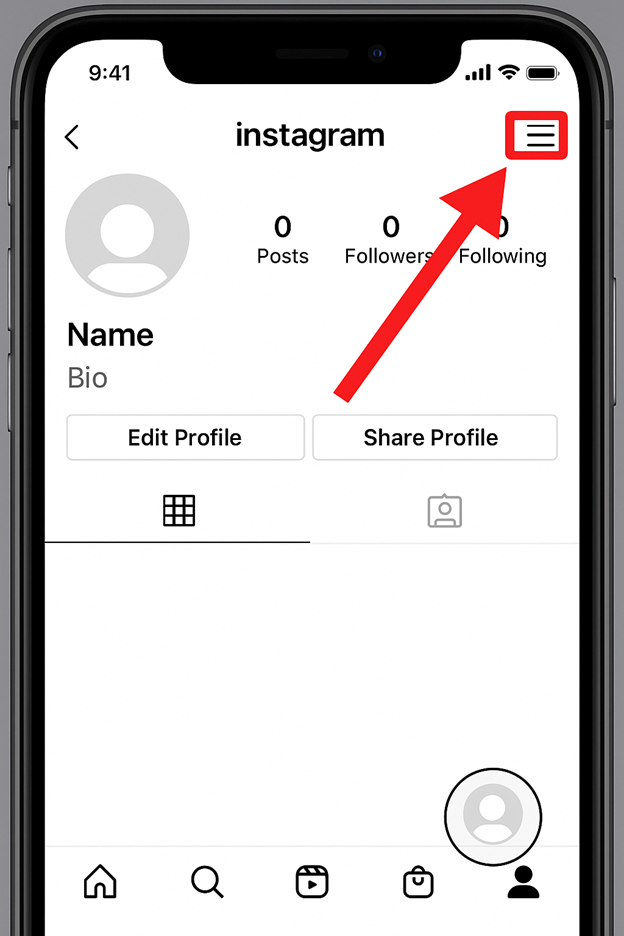
Tap the three horizontal lines (☰) in the top-right corner.
From the menu that appears on your screen, select Settings and Activity.
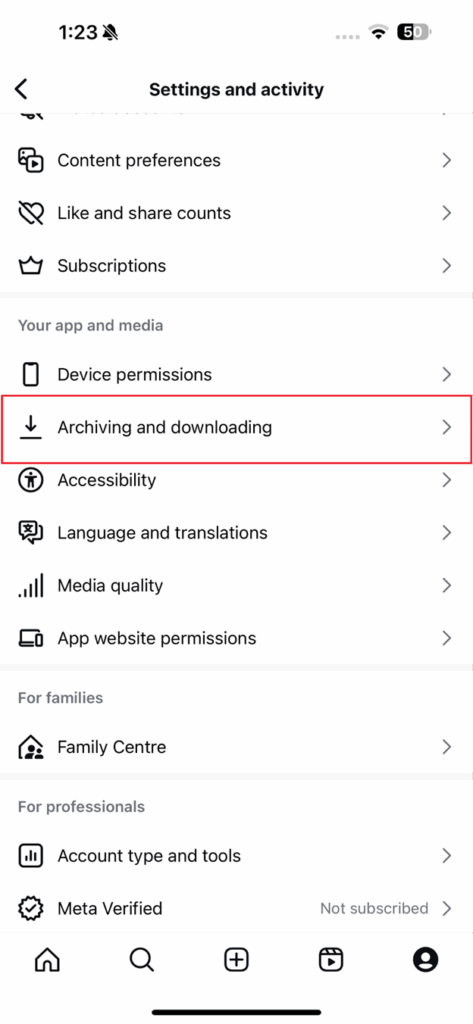
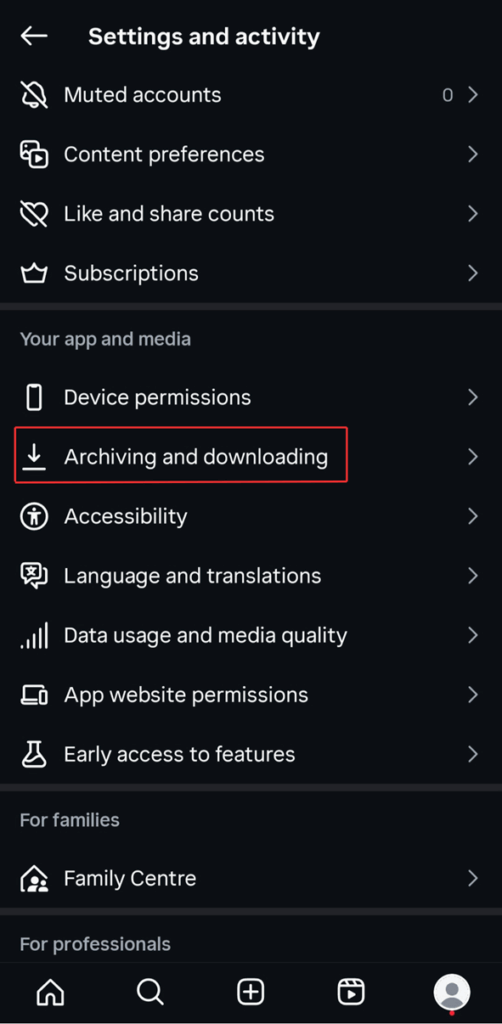
Step 4: Find the "Archiving and Downloading" Option
Scroll down until you see Archiving and downloading (in some versions, it may be under Your app and media).
Tap to open it.
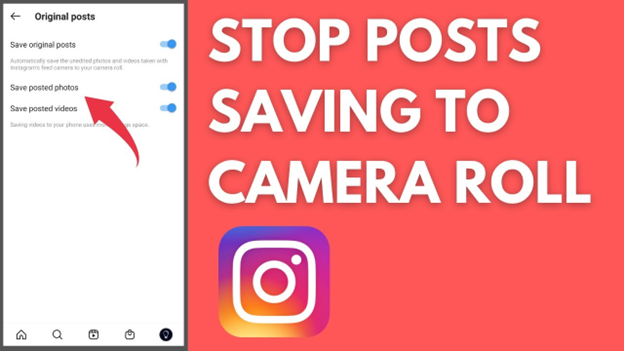
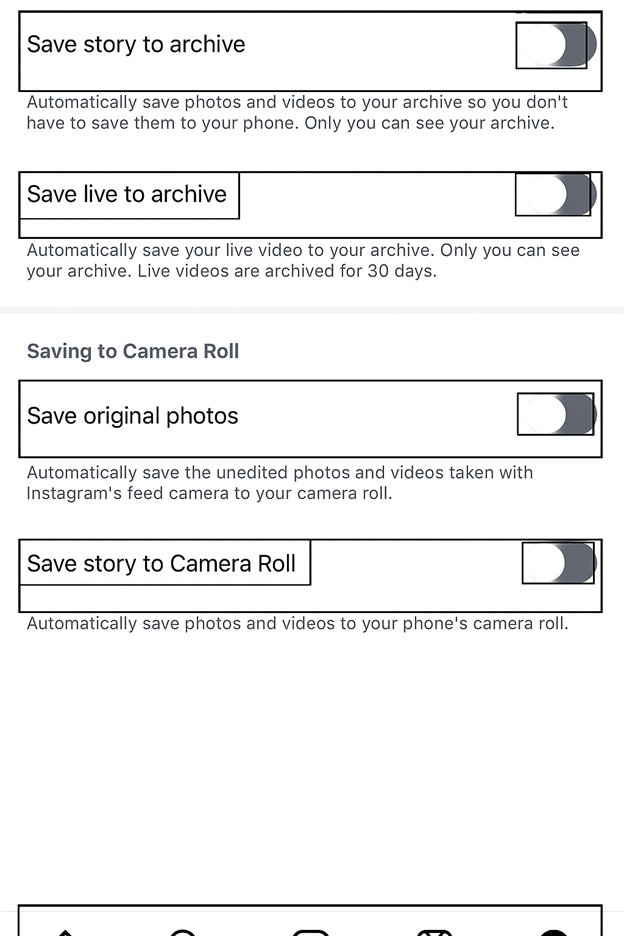
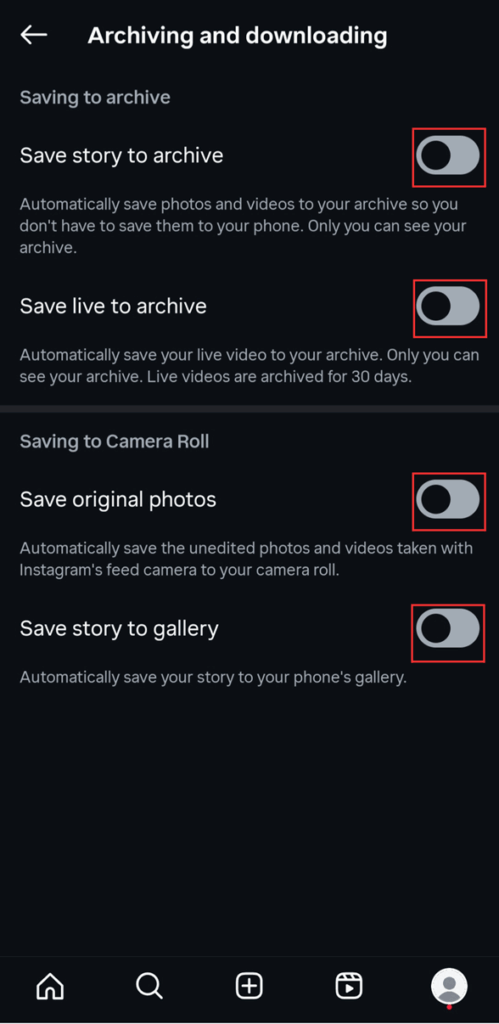
Step 5: Turn Off "Save Original Photos."
You’ll see an option labeled Save original photos (sometimes called “Save posted photos” on older versions).
Toggle the switch OFF.
When it’s gray, Instagram will no longer save every photo you post to your camera roll.
Step 6: Turn Off "Save Original Videos" (Optional)
If you post videos often and want to save space, toggle Save original videos OFF as well.
Step 7: For Stories, Disable "Save Story to Camera Roll"
Still in the Archiving and downloading menu, look for Save story to camera roll.
Turn this OFF so your stories won’t be saved automatically every time you post them.
Stop Instagram from Saving Posts to Camera Roll on Android
Suppose you’re using Instagram on an Android phone. In that case, you may have noticed that every photo, video, or story you post automatically gets saved in your phone’s Gallery or Google Photos app. While this can be convenient for backup purposes, it also means your storage space fills up faster, and your gallery gets cluttered with duplicates.
The solution? Turn off Instagram’s auto-save feature in just a few quick steps.
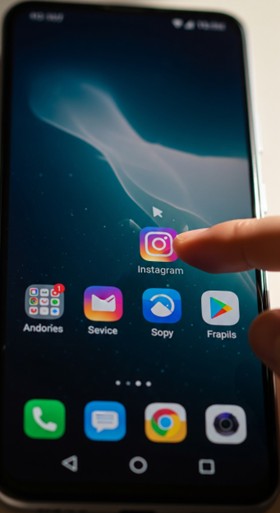
Step 1: Launch the Instagram App
Locate the Instagram app icon on your Android home screen and tap to open it.
Log in to the account you want to update if you aren’t already logged in.
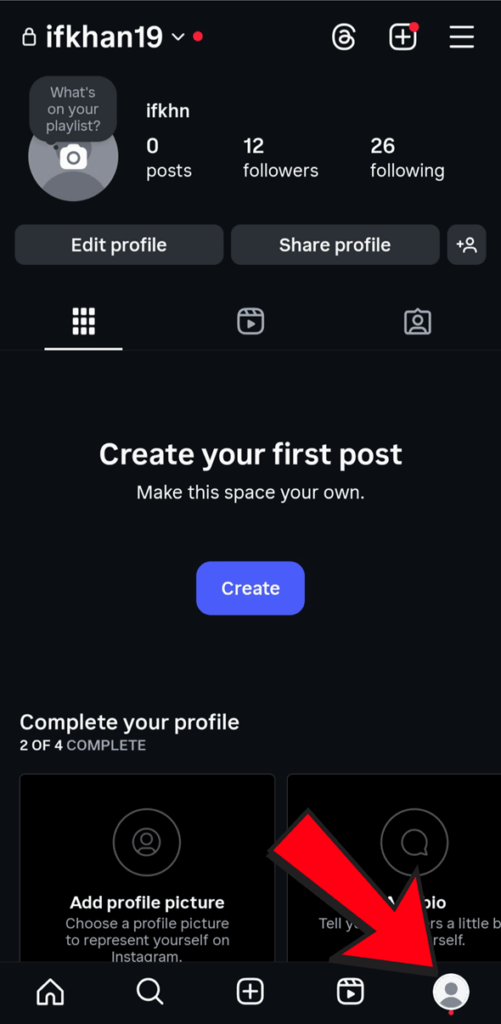
Step 2: Go to Your Profile
Tap your profile picture. You will see it in the bottom-right corner of your mobile screen.
This is what you need to do to open your Instagram profile page.
Step 3: Access Instagram Settings
Tap the three horizontal lines (☰) in the top-right corner.
From the menu, select Settings and privacy.
Step 4: Open "Archiving and Downloading"
Scroll down until you find Archiving and downloading (in older versions, this might appear under Original posts or Account settings).
Tap to open it.
Step 5: Disable "Save Original Photos"
You’ll see a toggle for Save original photos (sometimes labeled Save posted photos on older Android versions).
Turn this OFF — when the switch is gray, Instagram will no longer automatically save copies of your posted pictures to your gallery.
Step 6: Disable "Save Original Videos" (Optional)
If you often post videos and don’t need copies stored locally, toggle Save original videos OFF as well.
Step 7: Stop Saving Instagram Stories
Still in the same menu, look for Save story to gallery.
Turn this OFF so Instagram won’t save every story you post to your phone’s gallery.
That’s it! You’ve successfully stopped Instagram from auto-saving your posts and stories on your Android device. From now on, only the content you manually choose to save will appear in your phone’s gallery.
💡 Pro Tip for IPhone and Android Users
If you want to save a specific post from Instagram, all you need to do is tap on it, hit the three dots (•••) in the top-right corner, and choose Save to device. This gives you complete control over what stays in your local storage.
Common Mistakes to Avoid When Turning Off Auto-Save on Instagram
Disabling Instagram’s auto-save feature is simple, but many users make small mistakes that can cause them to lose important content or experience unnecessary inconvenience. Avoiding these pitfalls will help you keep control over your media and still enjoy Instagram without storage or privacy issues.
1. Forgetting to Save Important Content Manually
Once auto-save is off, Instagram won’t keep a local copy of your posts or stories. Many users post something and assume they’ll still have the file on their phone, only to realize later that it’s gone.
Tip: Always tap the three dots (•••) on a post or story and select Save when you share something you want to keep.
2. Not Backing Up Your Content Elsewhere
Instagram is not a guaranteed storage solution. If your account is hacked, disabled, or you accidentally delete a post, it’s gone for good unless you save it.
Tip: Use cloud storage like Google Drive, iCloud, or Dropbox to store your essential Instagram photos and videos.
3. Confusing Auto-Save with Archive
The Archive feature in Instagram stores posts and stories privately within the app, but it’s different from saving to your device’s gallery. Turning off auto-save doesn’t affect the archive, and vice versa.
Tip: If you want to keep posts hidden but still accessible, use Archive alongside manual saves.
4. Not Checking Settings After Updates
Instagram updates can sometimes reset or change settings without your notice. You might think auto-save is off, but a new update could have turned it back on.
Tip: After every major Instagram update, quickly check your camera and post settings to ensure they match your preferences.
5. Disabling Auto-Save for the Wrong Reason
Some users turn off auto-save just to stop clutter, but later regret not having a backup of specific memories.
Tip: Consider keeping auto-save on for Stories but off for posts, or vice versa — customize instead of using an all-or-nothing approach.
Yes. Turning off the “Save Original Photos” or “Save Posted Videos” option in Instagram’s settings only stops local saving — your posts stay on Instagram.
This could be due to any issue like cache issues, auto-sync from Google Photos or iCloud, outdated app versions, or linked third-party apps saving your content.
Yes. Instagram lets you manage photos and videos separately in the “Archiving and Downloading” settings
Conclusion:
Stopping Instagram from automatically saving posts to your camera roll is a small change that can make a big difference in your phone’s storage, privacy, and overall experience. This not only prevents duplicate files from piling up but also gives you more control over what is stored on your device. And don’t worry — your photos and videos will remain safely on Instagram, ready for you to access anytime.
If Instagram still saves posts even after turning off this feature, a quick round of troubleshooting — such as updating the app or checking your cloud backup settings — can solve the issue.
Ultimately, by managing your Instagram auto-save settings will help you keep the right balance between convenience, storage management, and privacy. By following the steps in this guide, you will enjoy a cleaner camera roll, more free space, and a more personalized social media experience.