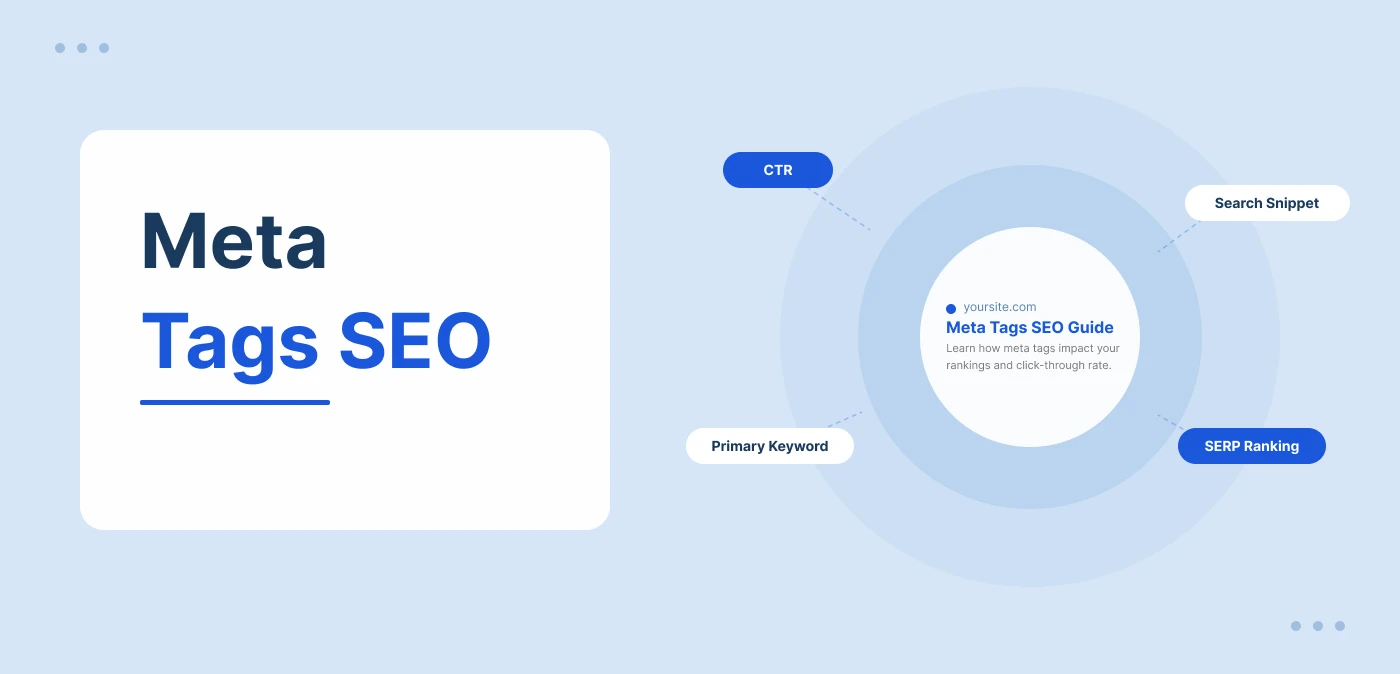
Meta Tags for Beginners Explained (2027 Guide)
A meta tag is a small piece of HTML code that gives information about your web page to search engines and browsers. The word “meta” means “about,” so a meta tag is literally a tag about your page. It tells machines what your page is, what it says, and how it should be treated.
Here is an analogy that makes it click. Think of a meta tag as the label on a file folder. You never see the label when you read the papers inside the folder, but it tells everyone what the folder contains. Meta tags do the same job for web pages. They sit quietly in the page’s code and tell Google and browsers what the page is about.
Most meta tags live in the <head> section of your HTML. This is the part of the code at the top of every page, before the visible content starts. When you visit a website, your browser shows you the <body> content. It hides the <head>. That is why visitors never see your meta tags, even though they shape what Google shows in search results.
Meta Tags for Beginners Explained Like You Are Five
Imagine you have a lunchbox. Inside are sandwiches, fruit, and juice. On the outside of the lunchbox, your mom sticks a label that says “Lunch for Jamie — sandwiches and fruit.” Nobody eats the label. But the label tells everyone what is inside without opening the box.
A meta tag works the same way. The label (meta tag) sits outside the lunchbox (your page’s visible content). Search engines read the label to decide what the page is about before they even “open” the whole page. Simple as that.
Why “For Beginners” Actually Matters Here
Meta tags look scary because they involve code. But you do not need to be a developer to use them. If you use WordPress, an SEO plugin like Rank Math or Yoast writes most meta tags for you. You just fill in boxes with plain text, and the plugin builds the code.
Even if you build pages by hand, every meta tag follows the same pattern. It is one line of HTML. You copy the line, change the words inside it, and paste it into your page. This guide shows you each one so you can recognize them and write them with confidence.
How Meta Tags Work Behind the Scenes
Meta tags work because they follow a simple deal between your website and everyone who reads it. Your site promises to describe each page clearly. Search engines, browsers, and social networks promise to read those descriptions and use them correctly.
Here is the process in order:
- You add a meta tag to the
<head>section of your page’s HTML. - A visitor loads the page, and their browser reads the head section first.
- Google’s crawler (Googlebot) also reads the head section when it visits your page.
- Each party picks out the tags it cares about and uses them for its own job.
Browsers use tags like charset and viewport to display your page correctly. Google uses the title tag and meta description for search results. Social sites use Open Graph tags to build link previews. Each reader takes what it needs and ignores the rest.
Where Meta Tags Live in Your HTML
Every HTML page has the same basic skeleton. It looks like this:
<!DOCTYPE html>
The <head> is the backstage area. The <body> is the stage. Meta tags belong backstage. If you ever see a meta tag sitting in the body of a page, that is a mistake. It may not work as intended.
What Happens When a Tag Is Missing
Nothing breaks. That is the good news. Your page will still load and still rank. Search engines just fill in the gaps with their own best guess.
If you skip the meta description, Google writes its own from your page text. If you skip the title tag, Google may use a heading or your domain name instead. If you skip the viewport tag, phones may shrink your whole site into a tiny, hard-to-read version.
So meta tags are not life or death. They are control. Adding them means you decide what Google shows, instead of letting Google guess.
Why Meta Tags Matter (and What They Don’t Do)
Meta tags matter because they shape the first impression your page makes everywhere it appears. On Google, your title tag and meta description are your headline and ad copy. On Facebook, X, and LinkedIn, your Open Graph tags build the preview card people see before they click.
But here is the part most beginners get wrong. Meta tags are not magic. They do not push your page to the top of Google by themselves. Google has said many times that the meta description is not a ranking factor. The keywords meta tag has been ignored by Google for well over a decade.
So what do meta tags actually do for you?
Meta Tags Win Clicks, Not Rankings
The title tag is one of the few meta tags that does influence rankings. It tells Google what your page is about, and Google weighs it as a ranking signal. But the meta description is different. It does not help you rank higher.
Instead, the meta description helps you win more clicks from the position you already have. A clear, inviting description can double your click-through rate. Google notices when people click your result more than others. Over time, better clicks can lead to better rankings.
Think of it this way. The title tag helps Google decide where you rank. The meta description helps searchers decide whether to pick you. You need both working together.
Meta Tags Control How Your Content Looks When Shared
When someone shares your page on social media, the platform builds a preview card. It needs a title, a description, and an image. Open Graph and Twitter Card meta tags supply exactly that.
Without them, the social site grabs random text and images from your page. Your beautiful article can show up as a grey box with a broken image. That kills shares. A few extra meta tags fix it completely.
Meta Tags Give Instructions to Search Engine Crawlers
Some meta tags are orders, not descriptions. The meta robots tag tells Googlebot what it is allowed to do. You can tell it “do not index this page” or “do not follow the links on this page.” The canonical tag tells Google which version of a page is the original when duplicates exist.
These instruction tags save you from duplicate content problems and keep private pages out of search results. You will not use them every day. But when you need them, nothing else does the job.
The Key Meta Tags Every Beginner Should Know
There are dozens of meta tags, but you only need a handful to handle nearly every situation. Learn these seven and you will be ahead of most website owners. We will go through each one: what it does, why it matters, and what good looks like.
The Title Tag: Your Page’s Most Important Meta Tag
The title tag is technically not a meta tag. It is its own HTML element. But everyone groups it with meta tags because it lives in the head section and describes the page. It is also the single most important tag for SEO, so we cover it first.
The title tag does three jobs. First, it tells Google what your page is about. Google treats it as a strong hint about your topic and your target keyword. Second, it becomes the blue clickable headline on the Google search results page. Third, it shows in the browser tab when someone has your page open.
A good title tag is 50 to 60 characters long. Google cuts off longer titles with an ellipsis (…). Put your most important words first, because the end of a long title may never be seen.
Good title tag: “Beginner Sourdough Recipe: Easy Step-by-Step Guide”
Bad title tag: “Home | My Awesome Baking Website | Recipes | Blog Posts | Contact Us”
The bad one wastes space on the site name and tells nobody what the page is. The good one says exactly what the page offers and who it is for.
The Meta Description: Your Free Ad on Google
The meta description is a short summary of your page, usually one or two sentences. Google often shows it under your blue headline in search results. That grey text is your meta description at work.
Remember, the meta description does not affect your rankings. It affects your clicks. Its only job is to convince a searcher that your page is worth opening. Write it like ad copy. Tell people what they will get and why your page is the right choice.
Keep it between 140 and 160 characters. Longer descriptions get cut off. Shorter ones waste the space Google gives you. Include your main keyword naturally, because Google bolds matching words in the description, which draws the eye.
Good meta description: “Learn how to bake sourdough bread at home with this beginner-friendly recipe. Step-by-step photos, simple ingredients, and troubleshooting tips included.”
Bad meta description: “Welcome to our baking blog. We love bread and baking. Check out our recipes and subscribe for more.”
The bad one says nothing about the page and gives nobody a reason to click. The good one promises specific value in one breath.
The Meta Robots Tag: Instructions for Search Engine Crawlers
The meta robots tag talks directly to search engine crawlers. It tells them what they may and may not do with your page. The two most common instructions are index and follow.
· index means “you may show this page in search results.” noindex means “do not show this page in search results.”
· follow means “you may follow the links on this page.” nofollow means “do not follow the links on this page.”
Most pages need no robots tag at all. The default behavior is index, follow, which is what you want for normal public pages. You only add this tag when you want to block something.
Common uses for noindex include thank-you pages, internal search results pages, login pages, and staging sites. If you would be embarrassed to see a page in Google’s results, noindex it.
Example: <meta name="robots" content="noindex, nofollow">
Be careful with this tag. One misplaced noindex can remove your whole site from Google. If your site suddenly disappears from search results, the robots tag is one of the first things to check.
The Canonical Tag: Your Duplicate Content Fixer
The canonical tag tells Google which version of a page is the “official” one when similar or identical content exists at more than one URL. It looks like this:
Duplicate content happens more often than beginners expect. Your page might load with and without “www.” It might have tracking parameters like ?utm_source=newsletter tacked onto the URL. E-commerce sites show the same product under several category URLs. To Google, each of those looks like a separate page with the same content.
The canonical tag points all those duplicates at one master URL. It tells Google, “Count all of these as one page, and rank this one.” Without it, your ranking power can split across duplicates, and Google may pick the wrong URL to show.
Every page should have a canonical tag pointing to itself. Most SEO plugins add this automatically. If you code by hand, make it a habit on every page template.
The Viewport Meta Tag: Making Your Site Mobile-Friendly
The viewport meta tag tells mobile browsers how to size your page. It looks like this:
This one line says: “Match the page width to the device width, and start at normal zoom.” Without it, phones render your page at desktop width and shrink it down. Text becomes tiny. Visitors have to pinch and zoom to read anything.
Google uses mobile-first indexing, which means it looks at your mobile version first. A missing viewport tag is one of the fastest ways to fail a mobile-friendliness check. This tag has nothing to do with keywords or rankings directly, but it is essential for a usable site in 2027.
If your site already looks fine on phones, your theme or framework is probably adding this tag for you. Check anyway. It costs nothing to confirm.
The Charset Meta Tag: Keeping Your Text Readable
The charset meta tag tells the browser which character encoding your page uses. For nearly every site in 2027, that is UTF-8:
Character encoding is how computers turn bytes into letters. If the browser guesses wrong, your text shows up as garbled symbols. You have probably seen this: question marks or boxes where apostrophes and special characters should be. A charset tag prevents it.
Put this tag as the very first thing in your head section, before anything else. The browser needs to know the encoding before it reads the rest of the page. Most modern site builders and themes add it automatically, but it is worth knowing what it does when you see it.
Open Graph and Twitter Card Tags: Controlling Social Shares
Open Graph tags (created by Facebook) and Twitter Card tags control how your page looks when shared on social media. They decide the title, description, and image in the preview card.
The four essential Open Graph tags are:
· og:title — the title shown in the share card
· og:description — the description shown in the share card
· og:image — the image shown in the share card
· og:url — the canonical URL of the page
Twitter Cards use their own tags, but Twitter now reads Open Graph tags too. You can usually skip separate Twitter tags, or add one line to pick a large image card:
The image matters most. Posts with a clear, relevant preview image get far more engagement than plain text links. Set og:image to a 1200 x 630 pixel image for the best display across platforms. Test your cards with the sharing debuggers from Facebook and X before you publish anything important.
Meta Tags for Beginners Explained in Code: Copy-Paste Examples
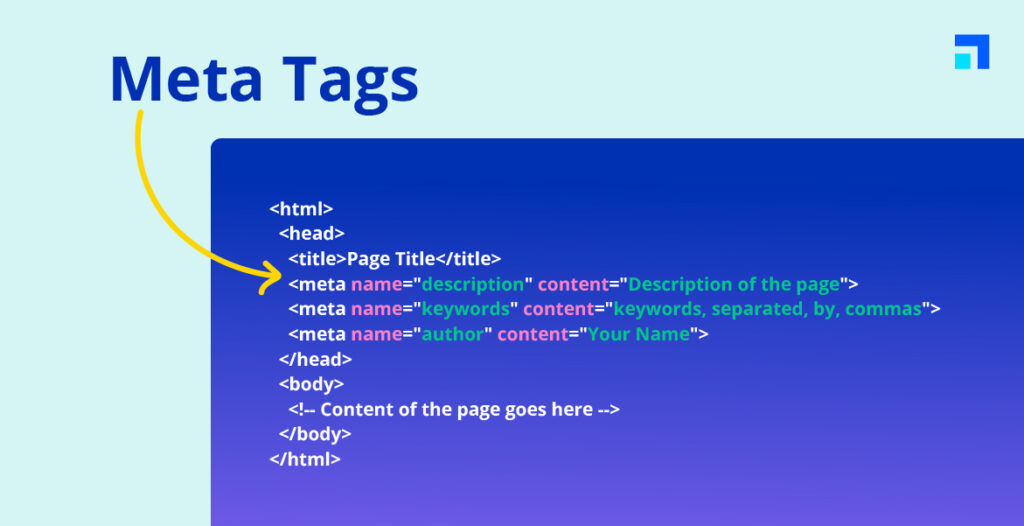
Theory is nice, but beginners learn fastest from real code. Below is a complete head section you can adapt for any page. It includes every tag covered in this guide, in the right order. Copy it, change the words in quotes, and paste it into your page template.
The Complete Meta Tag Template
Notice the order. Charset comes first, then viewport, then the title, then the description. The canonical and robots tags sit in the middle. Social tags go last. This order is not a strict rule, but it is a clean habit that keeps your head section easy to read.
How to Check Your Meta Tags on Any Page
You do not need special tools to inspect meta tags. Your browser already shows them. Right-click any web page and choose “View Page Source.” Your browser opens a new tab with the raw HTML. Scroll to the top, find the <head> section, and read the meta tags like a shopping list.
For a friendlier view, browser extensions like SEO Meta in 1 Click display every tag on a clean panel. Most SEO plugins also show a preview of how your title and description will look on Google. Check your tags after every major page update. It takes ten seconds and catches mistakes early.
How to Add Meta Tags in WordPress Without Touching Code
Most beginners use WordPress, and WordPress makes this easy. Install an SEO plugin such as Rank Math or Yoast SEO. Each page and post gets a new settings box below the editor. You type your title and description into plain text fields. The plugin writes the HTML for you.
The plugin also handles the canonical tag, the robots tag, and often the Open Graph tags automatically. You can still override them per page when needed. This is the safest path for beginners: let the plugin do the coding, and focus your energy on writing good titles and descriptions.
Meta Tags for Beginners Explained: 7 Common Misconceptions
Meta tags attract more myths than almost any other SEO topic. Old advice from 2010 still floats around forums and outdated tutorials. Here are the misconceptions that cause the most damage, corrected with what actually works in 2027.
Misconception 1: “The Meta Keywords Tag Helps You Rank”
It does not. Google has ignored the meta keywords tag for well over a decade, and Bing treats it mostly as a spam signal. Stuffing keywords into this tag does nothing for your rankings in 2027.
Some beginners still add it out of habit. It is harmless, but it is also pointless. Spend that energy on your title tag instead. That is the tag Google actually reads.
Misconception 2: “Meta Descriptions Are a Ranking Factor”
They are not. Google has confirmed this clearly. A keyword-stuffed meta description will not push your page up the rankings. A missing one will not push it down.
But do not skip them either. The description is your pitch to real humans on the search results page. More clicks from the same position is a win. And pages with higher click-through rates often earn more links and shares, which do help rankings.
Misconception 3: “Longer Title Tags Rank Better”
Longer titles do not rank better. Google reads the whole title, but it only displays about 50 to 60 characters. Anything beyond that gets cut off with an ellipsis.
Worse, a long title buries your main keyword. Front-load the important words. If your brand name goes in the title, put it at the end, not the beginning. Your keyword is what searchers are scanning for.
Misconception 4: “Duplicate Meta Descriptions Are Fine”
Duplicate descriptions are a missed opportunity, not a penalty. Google will not punish you for reusing the same description on fifty pages. But every duplicate is a page where you let Google guess instead of pitching the click yourself.
Write a unique description for every important page: your homepage, key service pages, and top blog posts. For huge sites with thousands of pages, let your CMS generate descriptions from the first paragraph. Unique is ideal; automatic beats identical.
Misconception 5: “Google Always Uses Your Meta Description”
It does not. Google rewrites meta descriptions more often than most beginners expect. If your description does not match the searcher’s query, Google builds a new one from your page content.
This is not a reason to skip writing them. When Google keeps your description, you control the pitch. When it rewrites, your page content does the pitching. Both paths work better when your page clearly answers the searcher’s question.
Misconception 6: “Noindex Means Google Will Forget the Page Forever”
Not quite. noindex tells Google to drop the page from search results, and Google usually obeys. But Google may still crawl the page, and it can still discover links on it (unless you also add nofollow).
Also, if other sites link to a noindexed page, Google may show the URL in results without a description. To truly hide a page, combine noindex with password protection or remove it from your site. The tag is a request, not a lock.
Misconception 7: “Meta Tags Are a One-Time Setup”
They are not. Titles and descriptions deserve regular reviews. Search trends change. Competitors rewrite their snippets. Your own pages evolve and outgrow their old descriptions.
Check your top-performing pages every few months. Update titles that underperform in click-through rate. Refresh descriptions when the page content changes. Meta tags are living copy, not set-and-forget code.
Meta Tag Best Practices for 2027

You know what each tag does. Now here is how to use them well. These practices come from years of working on real sites, and they hold up in 2027.
Write Titles for Humans First, Google Second
Start every title with the words a searcher would type. Then add a reason to click. “Beginner Sourdough Recipe: Easy Step-by-Step Guide” beats “Sourdough Recipe | Bread Blog” because it promises something specific.
Keep a simple formula: Primary Keyword + Benefit or Angle + Brand (optional). Use it consistently across your site. Consistency makes your whole site look professional in search results.
Treat Every Meta Description Like a Tiny Ad
Your description has one job: earn the click. Lead with the benefit, not the feature. “Fix your slow WordPress site in under an hour” beats “Our guide covers caching, images, and hosting.”
End with a soft call to action when it fits: “Learn how,” “See the steps,” “Get the checklist.” You are not shouting. You are inviting. And keep it honest. A description that overpromises and underdelivers earns bounces, not customers.
Keep Tags Unique Across Your Site
Every page deserves its own title and description. Duplicates confuse searchers and waste your best marketing space. When two pages share a title, neither one stands out.
For large sites, build title templates in your SEO plugin. A template like “%%title%% | %%sitename%%” keeps things unique automatically. Then hand-write descriptions for your most important pages and let templates handle the rest.
Audit Your Tags Regularly
Set a calendar reminder every quarter. Pull your titles and descriptions into a spreadsheet and look for problems: missing tags, duplicates, titles over 60 characters, descriptions over 160 characters. Free tools like Screaming Frog (for small sites) or your SEO plugin’s built-in audit can do the heavy lifting.
Fix the worst offenders first. Pages that already rank on page one but get few clicks are your biggest opportunity. A better snippet can lift traffic without any new content or links.
Match the Tag to the Page’s Real Content
Never write a title or description that promises what the page does not deliver. Google compares your tags against your content. A mismatch can get your description rewritten or your title replaced.
This also builds trust with readers. If someone clicks “Free SEO Checklist” and lands on a sales page, they leave. And they remember. Honest tags attract the right visitors and keep them on your site longer.
Real Examples: Good vs Bad Meta Tags
Examples beat explanations. Below are three real-world style scenarios showing how small tag changes make a big difference. The page topics are fictional, but the patterns come from audits of real websites.
Example 1: A Local Bakery’s Homepage
Before (bad):
· Title: “Home”
· Description: (none — Google auto-generated one from the footer text)
This bakery’s homepage ranked for its own name, but the search result showed the word “Home” and a snippet about copyright and opening hours. Nobody clicked.
After (good):
· Title: “Fresh Sourdough Bakery in Austin | Crumb & Craft”
· Description: “Crumb & Craft bakes fresh sourdough daily in Austin. Order online for pickup, see this week’s menu, and taste bread worth waking up for.”
Same page, same rankings. But now the result tells searchers exactly what the bakery offers and where. Click-through rate on branded searches improved noticeably within weeks.
Example 2: A Blog Post About Houseplants
Before (bad):
· Title: “My Thoughts on Plants and Some Tips I Learned Over the Years”
· Description: “I have been growing plants for a while now and wanted to share some of the things I have learned. Hope this helps you with your plants too.”
The title is 60+ characters of vague rambling. The description says nothing a searcher can use.
After (good):
· Title: “10 Easy Houseplants for Beginners (Low Light Friendly)”
· Description: “New to houseplants? These 10 beginner-friendly plants survive low light and busy schedules. Includes watering tips and where to buy each one.”
The new version leads with the keyword, names a specific number, and promises practical details. It matches what a beginner would actually type into Google.
Example 3: A Software Company’s Pricing Page
Before (bad):
· Title: “Pricing | Acme Tools”
· Description: (duplicated from the features page)
Short and lazy. It gives no reason to choose this company over the ten competitors on the same results page.
After (good):
· Title: “Simple Pricing: Free Plan + $29/mo Pro | Acme Tools”
· Description: “Acme Tools pricing is simple: a free plan forever, and Pro at $29/mo with unlimited projects. No hidden fees. Start free in 60 seconds.”
Specifics win. Numbers, time frames, and the removal of fear (“no hidden fees”) turn a forgettable result into a clickable one. Note: never invent prices for products you do not control. These examples are illustrative only.
Search Engine Insight offers practical resources on organic search, website performance, and audience-focused content to help businesses strengthen their digital marketing efforts.
Frequently Asked Questions
What are meta tags in simple terms?
Meta tags are short pieces of code in a web page’s head section that describe the page to search engines and browsers. Visitors do not see them on the page. They control things like the search result title, the description under it, and how the page looks when shared on social media.
Do meta tags help with SEO in 2027?
Some do, some do not. The title tag is an important ranking signal. The meta description is not a ranking factor, but it can raise your click-through rate. Robots and canonical tags help Google crawl and index your site correctly. Together, they support SEO even when they do not directly boost rankings.
What is the difference between a title tag and a meta title?
There is no difference. “Meta title” is just an informal name for the title tag. Strictly speaking, the title tag is its own HTML element, not a meta tag. But SEO tools and plugins use both terms for the same thing: the clickable headline in search results.
How long should a meta description be?
Aim for 140 to 160 characters. Google may show up to about 160 characters on desktop, sometimes fewer on mobile. Longer descriptions get cut off mid-sentence. Shorter ones leave persuasive space unused. Write tight, front-load the benefit, and check how it looks in a SERP preview tool.
Do I need meta tags if I use WordPress?
WordPress handles the basics through your theme, but you still need an SEO plugin for the important tags. Plugins like Rank Math or Yoast SEO let you write custom titles and descriptions for every page. They also add canonical tags, Open Graph tags, and robots controls automatically.
What happens if I don’t add a meta description?
Nothing breaks. Google will generate one from your page content. Sometimes its version is fine. Often it pulls awkward fragments like navigation text or the first sentence of a paragraph. Writing your own description means you control the message instead of hoping Google guesses well.
Should I add the meta keywords tag?
No. Google ignores it completely, and it has for well over a decade. Adding keywords there will not help your rankings. Worse, it can hand your keyword strategy to competitors who view your page source. Leave it out and focus on your title tag instead.
Can meta tags hurt my SEO?
Yes, if misused. A noindex tag on the wrong page can remove it from Google entirely. Duplicate titles across many pages waste ranking potential. Misleading descriptions increase bounce rates. The tags themselves are tools; mistakes come from using them carelessly, so double-check before publishing.
What are Open Graph tags used for?
Open Graph tags control how your page appears when shared on Facebook, LinkedIn, and most other social platforms. They set the share card’s title, description, and image. Without them, social sites grab random content from your page, which often looks broken or unappealing in the feed.
How do I check a competitor’s meta tags?
Right-click their page and select “View Page Source,” then look at the head section. Or use a free browser extension that lists meta tags in a clean panel. Studying competitors’ titles and descriptions is a great way to learn what works in your niche — then write better versions for your own pages.
Do meta tags affect how my site looks on mobile?
The viewport meta tag does. Without it, mobile browsers shrink your desktop layout into a tiny, unreadable version. The charset tag also matters: without it, special characters can display as garbled symbols. Both are essential for a professional-looking mobile experience in 2027.
How often should I update my meta tags?
Review them at least twice a year, and update them whenever the page content changes significantly. Refresh titles and descriptions on pages with good rankings but low click-through rates. Treat your tags as living copy that improves alongside your content, not as a one-time setup task.
Conclusion:Meta Tags for Beginners Explained
Meta tags for beginners explained in one last summary: they are small pieces of code that describe your pages to search engines, browsers, and social networks. The title tag shapes your rankings and your search headline. The meta description wins clicks. Robots and canonical tags keep your site organized behind the scenes. Open Graph tags make your shares look sharp.
You do not need to memorize every tag. Start with the seven in this guide. Write unique, honest titles and descriptions for your most important pages. Check your work with view-source or a free browser tool. Revisit your tags a few times a year.
Small, consistent effort here pays off for years. Every page you publish with strong meta tags is a page that presents itself well on Google and social media from day one. Now open your site, pick your homepage, and rewrite its title and description today. That single improvement takes ten minutes, and it is the perfect first step.