How to Fix Google Search Console Excluded Pages: A Beginner’s Guide (2026)
Learning how to fix Google Search Console excluded pages starts with understanding what the “Excluded” report actually means — and why most of the pages listed there are nothing to worry about. If you just opened the Pages report in Search Console and saw a long list of excluded pages, take a breath. Many of them are supposed to be there.
This guide explains everything in plain English. You will learn what “Excluded” really means, which exclusion reasons are normal and which ones need your attention, and the exact steps to diagnose and fix each problem. You will also learn how to ask Google to look at your fixed pages again, and how to prevent indexing problems in the future. No jargon. No panic. Just a clear, step-by-step process that works in 2026.
What Excluded Means in Google Search Console
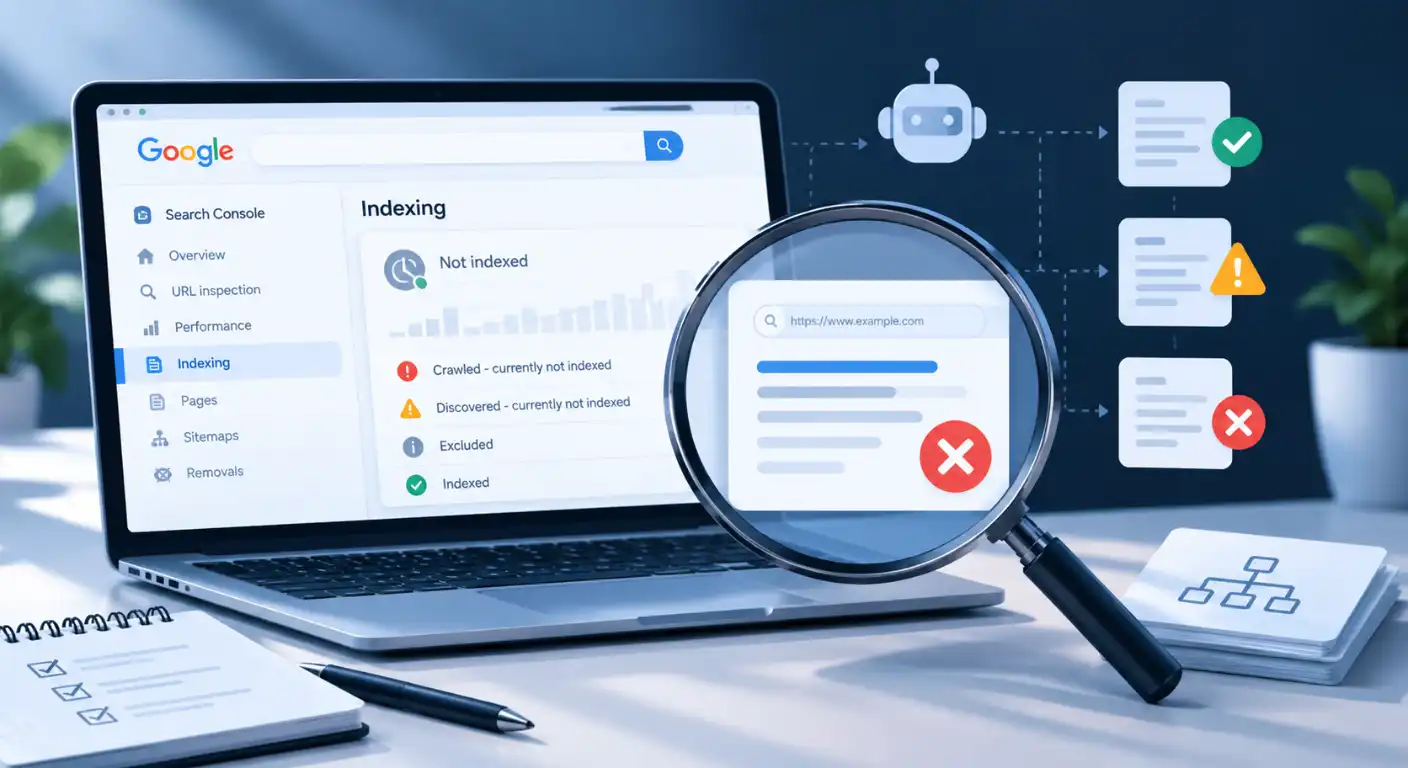
The Pages report in Google Search Console shows four groups: Indexed, Not indexed (also called “Excluded”), and pages Google found through other reasons. An “Excluded” page is any URL Google knows about but chose not to put in its search index. It is not a punishment. It is simply Google saying, “I found this URL, but I will not show it in search results right now.”
There are many reasons this happens. Some are your fault, like a broken link or a page blocked by a setting you forgot about. Some are completely normal, like a redirect pointing to another page. And some are Google’s own choice, like skipping a thin page it found by crawling your site.
The key idea: Excluded does not mean error. The report mixes pages you must fix with pages that are working exactly as designed. Your job is to tell the difference.
How to Open the Excluded Report
Log in to Google Search Console. In the left menu, click “Pages” under the Indexing section. Scroll down to “Why pages aren’t indexed.” You will see a table of reasons with page counts next to each one. Click any reason to see the URLs affected. This is your starting point for everything in this guide.
Each reason is a clue about what Google saw. Read it like a doctor reads a symptom: it tells you where to look, not what the cure is. The next sections walk through every common reason and what to do about it.
Why the Excluded Report Matters (and When It Does Not)
Your excluded pages matter when they are pages you want people to find through Google. If your main service page, a key blog post, or your contact page shows up as excluded, that page gets zero search traffic. It is invisible. That is a real problem worth fixing today.
On the other hand, most websites have dozens or hundreds of excluded pages that are perfectly fine. Tag pages, author archives, old redirects, print versions of pages, and admin URLs are normal exclusions. Google skipping them saves its resources and keeps your site’s search presence clean. Do not try to get every page indexed. That is not the goal.
The Simple Rule: Index What Matters
Before fixing anything, make a list of the pages that actually earn you traffic, leads, or sales. Then check whether any of them are excluded. That short list is your priority. Everything else can wait or may need no action at all.
This mindset saves beginners hours of worry. A site with 40 excluded pages and 30 indexed pages can be perfectly healthy if the 30 indexed pages are the ones that matter. Quality of the index beats size of the index.
How Excluded Pages Connect to Traffic
Here is the chain: Google must index a page before it can rank it. If your page is excluded, it cannot appear in search results for any keyword — not on page one, not on page fifty. This is also why a page that is “not showing up on Google” is often, at its root, an indexing problem rather than a ranking problem.
That is why learning how to fix Google Search Console excluded pages pays off. You are not just cleaning up a report. You are opening the door for pages to get found, clicked, and trusted.
How to Fix Google Search Console Excluded Pages: The Reasons at a Glance
Here is a quick map of every common exclusion reason, what it means in plain English, and whether it usually needs action. Use this table to find your reason fast, then jump to the detailed fix section below.
| Exclusion reason | What it means | Usually needs action? |
| Page with redirect | The URL redirects somewhere else | No (unless the wrong page redirects) |
| Duplicate, without user-selected canonical | Google found similar pages and picked one to index | Sometimes (check which one it picked) |
| Crawled — currently not indexed | Google read the page but did not index it | Yes, if the page matters |
| Discovered — currently not indexed | Google knows the URL exists but has not crawled it | Yes, if the page matters |
| Not found (404) | The page does not exist | Only if the URL should exist |
| Soft 404 | The page looks empty or broken to Google | Yes |
| Blocked by robots.txt | Your robots.txt file told Google not to crawl it | Only if the block is a mistake |
| Excluded by ‘noindex’ tag | The page itself tells Google not to index it | Only if the tag is a mistake |
| Alternate page with proper canonical tag | You told Google another version is the main one | No |
| Blocked due to access forbidden (403) | The server refused to show the page | Yes |
| Blocked due to unauthorized request (401) | The page needs a login | Only if it should be public |
| Duplicate, Google chose different canonical than user | You suggested a canonical, Google picked another | Sometimes |
| Server error (5xx) | Your server failed when Google visited | Yes |
| Redirect error | The redirect chain is broken | Yes |
Notice how many rows say “No” or “Only if.” That is the whole point of this guide: fix what matters, leave what works.
The Three Groups to Think In
To keep it simple, put every exclusion into one of three groups. Group 1: Working as intended — redirects, alternate pages with proper canonicals, intentional noindex tags. Leave these alone. Group 2: Probably your mistake — wrong noindex tag, accidental robots.txt block, broken redirect, 404 on a page that should exist, server errors. Fix these. Group 3: Google’s judgment call — crawled but not indexed, discovered but not indexed, duplicate decisions. Improve the page, then ask Google to look again.
Step-by-Step: How to Diagnose Any Excluded Page
Before you fix anything, you need to know exactly what is wrong with a specific page. Follow this process for any URL that matters to you.
Step 1: Open the URL in the URL Inspection Tool
In Search Console, paste the exact URL into the search bar at the top of the page. This opens the URL Inspection tool. Click “Test live URL.” This shows you what Google sees right now, not what it saw weeks ago when it first visited.
The tool tells you four useful things: whether the live URL can be indexed, whether your page allows crawling, whether the page loads successfully, and which canonical URL Google picks. Write down anything that looks off. This live test is your ground truth.
Step 2: Check the Page Yourself
Open the URL in your own browser. Does the page load? Does it show a real article or product, or an empty layout? Try opening it in a private browsing window to see what a visitor without your login sees.
Then view the page source (right-click and choose “View page source”) and search for “noindex” and “canonical.” A line like <meta name=”robots” content=”noindex”> means the page is telling Google to stay away. A canonical line shows which page Google treats as the main version. Both of these explain many exclusions instantly.
Step 3: Check Your Robots.txt and Sitemap
Visit yoursite.com/robots.txt. Look for lines starting with “Disallow” that might block the page or its folder. Many beginners find surprises here — a staging-site block that went live, or a rule blocking a whole directory by accident.
Then check your XML sitemap. If the page is not listed there, that alone does not cause exclusion, but it makes discovery slower. If the page IS listed in the sitemap but Google still excludes it, that combination is a strong hint that Google read the page and decided against indexing it.
Step 4: Decide Which Group It Falls Into
Using the three groups from the table above, decide what kind of problem you have. If it is Group 1, stop — there is nothing to fix. If it is Group 2, the fix is usually quick and clear. If it is Group 3, you will improve the page and request another look.
Write your decision down for each important URL. This short list becomes your action plan, and it keeps you from chasing pages that do not need help. This triage-first approach is the core of how to fix Google Search Console excluded pages efficiently instead of guessing.
Fix Each Exclusion Reason, One by One
Now the practical part. Below is a fix for every common exclusion reason, written so a beginner can follow it without touching code — with code-free alternatives wherever possible. Work through them in the order that matches your report, since knowing how to fix Google Search Console excluded pages is mostly a matter of matching each URL to the right fix below.
Page With Redirect
What it means: The URL forwards visitors to a different URL. Google indexed the destination instead, which is correct behavior.
When to act: Only if the wrong page is redirecting. For example, your main product page redirects to your homepage by mistake. Or an old URL redirects to a page that no longer exists.
How to fix it:
- Open the redirecting URL in your browser and see where it lands.
- Ask yourself: is this the right destination? If yes, do nothing. This exclusion is fine.
- If no, go to your website’s redirect settings. In WordPress, this usually lives in a redirect plugin or your SEO plugin’s redirect manager.
- Change the redirect to point to the correct page, or remove the redirect if the original page should exist again.
- Test the URL again and confirm it lands where you want.
Duplicate, Without User-Selected Canonical
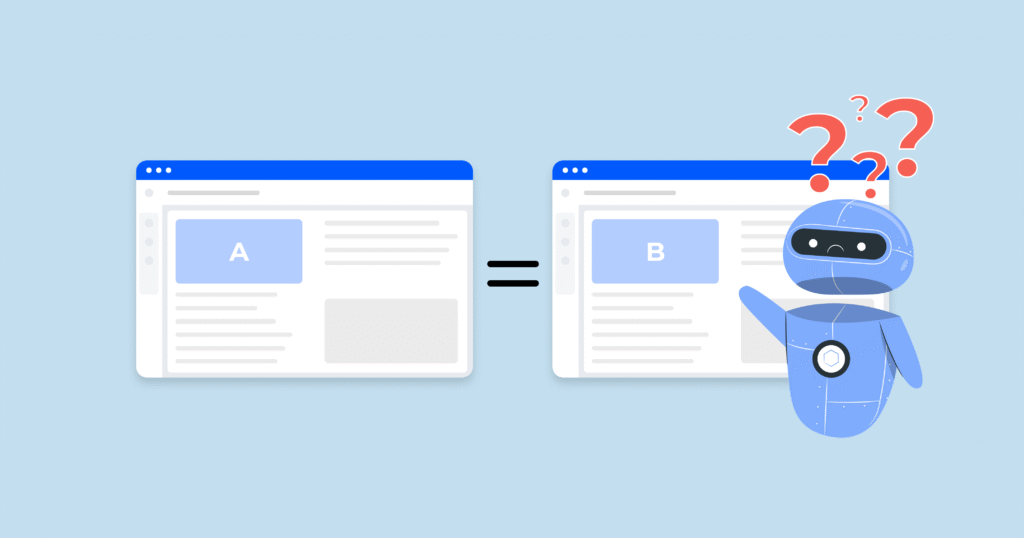
What it means: Google found two or more pages on your site with very similar content and chose one to index. The others are excluded as duplicates.
When to act: When Google picked the wrong page. For example, it indexed your tag page instead of the full article, or an old URL instead of the current one.
How to fix it:
- In the URL Inspection tool, check “Google-selected canonical.” That is the page Google chose.
- Compare it to the page you want indexed. If Google picked the right one, do nothing.
- If it picked the wrong one, add a canonical tag pointing to your preferred page. This answers the common question of what is canonical tag in SEO: it is a small piece of code that tells Google which version of a page is the main one when similar versions exist.
- In most SEO plugins (Yoast, Rank Math), you can set the canonical URL in the page’s advanced settings without writing code.
- Make the preferred page clearly better: more complete, more useful, more up to date. Google favors the stronger page.
Crawled — Currently Not Indexed
What it means: Google downloaded and read your page but decided not to add it to the index. This is Google’s judgment call about quality or usefulness.
When to act: Whenever the page is one you want in search results.
How to fix it:
- Read the page like a first-time visitor. Is it thin — under a few hundred words with little real information? Thin pages are the most common cause.
- Add real value: answer more of the reader’s questions, add examples, add images with descriptive alt text, update anything outdated.
- Make sure the page is not nearly identical to another page on your site. Merge duplicates instead of keeping two weak versions.
- Add internal links pointing to the page from your other relevant pages. Links tell Google the page is important.
- Check that the page is not blocked by a noindex tag or robots.txt (see the diagnosis steps above).
- After improving the page, request reindexing through the URL Inspection tool (explained below).
Discovered — Currently Not Indexed
What it means: Google knows the URL exists — usually from your sitemap or a link — but has not visited it yet. This often happens on new sites or sites with many pages.
When to act: If the page has been sitting in this state for more than a couple of weeks and it matters to you.
How to fix it:
- Make sure the page loads quickly and has no server errors. Slow or failing pages get pushed down the crawl queue.
- Add the URL to your XML sitemap if it is missing.
- Link to the page from at least one indexed page on your site — ideally your homepage or a popular article.
- Keep your site active: publish or update content regularly so Google crawls more often.
- Be patient with new sites. Google gives new sites a smaller crawl budget at first. It grows as your site proves itself.
Not Found (404)
What it means: Google tried to visit the URL and the server said the page does not exist. This is a normal part of the web — pages get deleted or moved.
When to act: When the URL should exist, or when it gets traffic or has backlinks pointing to it.
How to fix it:
- Open the URL in your browser. If you see your site’s 404 page, the page is truly gone.
- Ask: did this page exist before? If it moved, set up a redirect from the old URL to the new one.
- If the page should never have existed (a typo URL, a spammy link), do nothing. The 404 is correct.
- Learning how to find and fix 404 errors for SEO starts in Search Console itself: the Pages report lists every 404 Google found. Your SEO plugin may also have a 404 monitor. Check these lists monthly.
- For any 404 with backlinks or traffic, redirect it to the closest matching live page — not just your homepage.
Soft 404
What it means: The page technically loads, but Google thinks it looks like a “not found” page — thin, empty, or with almost no real content. Soft 404 errors are sneaky because the page looks fine in your browser at a glance.
When to act: Almost always, if the page is supposed to be real content.
How to fix it:
- Open the page and look with fresh eyes. Does it have substantial, unique content? Common soft-404 triggers: empty category pages, “coming soon” pages, thin search-result pages, and pages with only a sentence or two.
- Add real content: a proper description, useful information, images, and internal links.
- If the page has no purpose, either give it one or let it return a real 404 and remove its internal links.
- After fixing, use the URL Inspection tool to test the live URL and request reindexing.
Blocked by Robots.txt
What it means: Your robots.txt file has a rule that tells Google’s crawler not to visit this URL.
When to act: When the block is a mistake — a common one is copying a staging site’s robots.txt to the live site, which often contains Disallow: /.
How to fix it:
- Open yoursite.com/robots.txt and find the rule blocking the page.
- Remove or narrow the rule so it no longer blocks the page you want indexed.
- In WordPress, robots.txt is often controlled by your SEO plugin or a setting under Settings → Reading (“Discourage search engines from indexing this site” — make sure this is OFF on your live site).
- Use Search Console’s robots.txt tester (under Settings → robots.txt) to confirm the page is now allowed.
- Request reindexing of the affected URLs.
Excluded by ‘Noindex’ Tag
What it means: The page’s code contains a noindex directive telling Google not to index it.
When to act: When you want the page indexed. This is a frequent accident: a page set to “noindex” during drafting that never got switched back, or a site-wide noindex from a staging environment.
How to fix it:
- In the page’s SEO settings (Yoast, Rank Math, or your platform’s equivalent), find the “Advanced” or “Robots” section.
- Change “noindex” to “index” (or remove the noindex setting).
- View the page source and confirm the noindex line is gone.
- Request reindexing. Note: Google must recrawl the page to see that the noindex is gone, so this one takes a little longer than most fixes.
Alternate Page With Proper Canonical Tag
What it means: This page has a canonical tag pointing to a different page, and Google agreed with your choice. The other page is the indexed one.
When to act: Almost never. This is your setup working correctly — for example, a print version pointing to the main article, or an HTTP version pointing to HTTPS.
How to fix it: You do not need to. If you disagree with the setup, change the canonical tag to point where you want — but be sure you understand why the tag was there first.
Blocked Due to Access Forbidden (403) or Unauthorized (401)
What it means: Google’s crawler was refused entry. A 403 means the server blocked it; a 401 means the page requires a login.
When to act: When the page should be public. If it is a members-only page, this exclusion is correct — do not “fix” it.
How to fix it:
- Open the page in a private browsing window while logged out. If you cannot see it either, your site is blocking everyone, not just Google.
- Check your security plugin or firewall settings. Some firewalls block Googlebot by accident — whitelist Google’s crawler.
- Check the page’s visibility settings in your CMS. Make sure it is set to “Public,” not “Private” or “Password protected.”
- If your host uses bot protection, ask them to allow verified Googlebot traffic.
- Request reindexing once access is restored.
Server Error (5xx)
What it means: Your server failed when Google tried to visit. This is a hosting or code problem, not a content problem.
When to act: Always. Even occasional 5xx errors can push pages out of the index.
How to fix it:
- Check whether your site is slow or down right now. Try loading several pages.
- Look at your hosting account’s resource usage. Cheap shared hosting often throws 5xx errors under load — upgrading your plan or enabling caching usually solves it.
- Deactivate recently added plugins one by one if the errors started after a change.
- If the errors continue, contact your hosting provider with the exact URLs and times from Search Console.
- After the server is stable, request reindexing for the affected URLs.
Redirect Error
What it means: Google tried to follow a redirect and hit a problem: a redirect loop (page A points to page B which points back to A), a chain that is too long, or a redirect to a broken URL.
When to act: Always. Redirect errors waste your crawl budget and keep pages out of the index.
How to fix it:
- Open the URL in your browser. If it loops or errors, you have confirmed the problem.
- Use your redirect manager to view the full chain. Simplify it: every redirect should point directly to the final destination in one hop.
- Remove any redirect that points to another redirect.
- Make sure the final destination returns a 200 status (loads normally) and is not itself excluded by noindex or robots.txt.
- Test again and request reindexing.
How to Ask Google to Recrawl and Reindex Your Pages
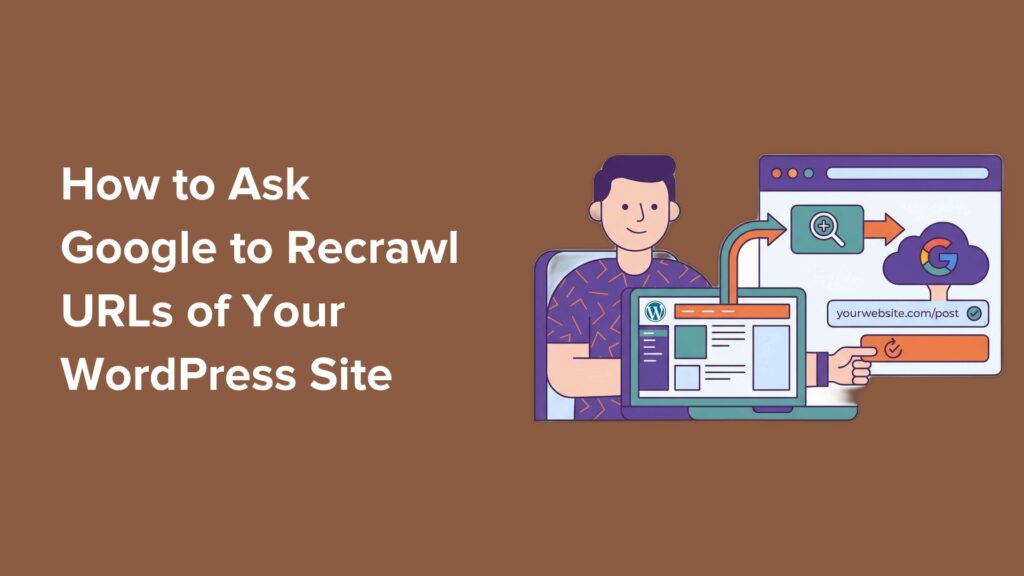
Fixing a page is only half the job. You must also tell Google to come back and look at it. Google will eventually recrawl on its own, but that can take weeks. These two tools speed things up.
Use the URL Inspection Tool
- Paste the fixed URL into the Search Console search bar at the top.
- Click “Test live URL” to confirm Google now sees the fixed version.
- Click “Request indexing.” Google puts the URL in its crawl queue.
- Repeat for each important URL you fixed. There is a daily limit on how many URLs you can submit this way, so prioritize your most important pages.
This does not guarantee indexing. It guarantees Google will look at the page again soon. Whether it indexes the page depends on the page’s quality and the fix you made.
Use “Validate Fix” for Whole Categories
When Search Console shows an issue affecting many pages — for example, 40 pages blocked by robots.txt — fix them all first, then click “Validate fix” on the issue row. Google rechecks the affected URLs over the following days and updates the report. You can watch the validation progress right in Search Console. This is much faster than submitting 40 URLs one by one.
Submit an Updated Sitemap
After fixing many pages, resubmit your XML sitemap in Search Console under Sitemaps. This gives Google a fresh list of your URLs and their last-modified dates. It is a gentle nudge that says, “Something changed — come take a look.” It is not instant, but it helps, especially for the “Discovered — currently not indexed” group.
A Note on Other Search Engines
Google is not the only search engine worth being indexed in. Bing powers a meaningful share of searches, and getting your pages into Bing’s index also feeds other search tools. Learning how to submit sitemap to Bing Webmaster Tools is a quick win: sign up, add your site, and submit the same XML sitemap you use for Google. While you are there, turn on IndexNow — a simple protocol that notifies participating search engines the moment you publish or update a page, so they can crawl it faster. If your SEO plugin supports IndexNow, enable it. It takes minutes and helps both new pages and fixed pages get discovered sooner.
How to Prevent Pages From Being Excluded in the Future
Fixing exclusions one by one gets tiring. These habits keep your index healthy so you spend less time in the Excluded report.
Build a Monthly Indexing Routine
Once a month, open the Pages report and scan the reasons list. Look for sudden spikes — a reason jumping from 5 pages to 50 is a red flag that something changed on your site. Most months you will find nothing urgent. The routine takes ten minutes and catches problems while they are small.
Keep Your Sitemap Clean
Your sitemap should list only pages you want indexed. Remove URLs that redirect, return 404s, or carry noindex tags. A clean sitemap teaches crawlers where to spend their time. Most SEO plugins generate sitemaps automatically, but check yours after any site migration, redesign, or bulk content cleanup.
Protect Your Site From Staging Mistakes
The most common cause of mass accidental noindex is launching a staging or development copy without removing its noindex setting. Before any launch or migration, check your homepage’s page source for noindex. Check yoursite.com/robots.txt too. This one check prevents disasters.
Publish Content Worth Indexing
Google’s judgment-call exclusions (crawled but not indexed, discovered but not indexed) mostly come down to one thing: the page did not convince Google it was worth indexing. Write pages that fully answer the reader’s question. Add original examples, images, and detail. Link new pages from your existing indexed pages. Sites that consistently publish useful content earn faster, fuller indexing over time.
Watch Your Internal Linking
Every important page should be reachable within a few clicks from your homepage. Pages buried deep with no internal links are harder for Google to find and easier for it to skip. When you publish something new, link to it from a related existing article. When you notice an important page excluded, check how many internal links point to it — the answer is often “none.”
Keep Redirects Tidy
Review your redirect list once or twice a year. Delete redirects for pages nobody visits anymore, and fix chains so each old URL points straight to its final home. Tidy redirects mean fewer “Page with redirect” and “Redirect error” surprises in your reports.
Common Mistakes Beginners Make
Panicking over the total count. Seeing “300 excluded pages” feels alarming, but most are working as intended. Focus on reasons and specific URLs, not the headline number.
Trying to index everything. Tag pages, thin archives, and duplicate printer pages do not belong in the index. Forcing them in dilutes your site’s quality signals. Index what matters; let the rest stay out.
Deleting pages to “clean up” the report. Deleting a page turns a harmless exclusion into a 404 that still shows in your reports. Fix the underlying setting instead of deleting content that serves a purpose.
Requesting indexing before fixing the problem. Asking Google to reindex a page that still has a noindex tag or a broken redirect wastes your limited daily requests. Fix first, verify with the live URL test, then request.
Ignoring server errors. A site that throws 5xx errors during Google’s visits loses indexed pages quietly over time. If “Server error” appears in your report, treat your hosting as the emergency it is.
Forgetting the noindex after a redesign. Developers often add noindex to staging sites. If that setting ships to production, your whole site can drop out of the index. Always verify after launches.
Blocking resources in robots.txt. Blocking your CSS or JavaScript files does not keep pages out of the index directly, but it stops Google from rendering pages properly — which can lead to soft 404 judgments on pages that are actually fine.
Expert Tips That Speed Up Indexing
Link new pages from your homepage or a popular post. Internal links from strong pages pass both crawl attention and authority. One good internal link often does more for indexing than resubmitting a sitemap.
Keep your most important content updated. Google recrawls pages that change. A quarterly refresh of your key articles — new examples, current dates, better answers — keeps them in Google’s rotation and signals that your site is alive.
Use the IndexNow protocol. As mentioned above, IndexNow tells participating search engines about new and updated pages instantly. Enable it in your SEO plugin if available. It is free, takes minutes, and shortens the wait between publishing and crawling.
Build a few quality backlinks to key pages. This circles back to a classic question — why is my website not showing up on Google? Often the answer is that Google has not found or trusted the page yet. A link from an established site sends Google’s crawler straight to your page and adds trust at the same time.
Monitor the Indexing report after big changes. Site migration, HTTPS switch, domain change, or platform move? Watch the Pages report weekly for a month afterward. Catching a spike in exclusions early turns a potential disaster into a quick fix.
Separate your sitemaps. Many SEO plugins let you split sitemaps by content type (posts, pages, products). If one section has problems, a split sitemap makes it easier to spot which one in Search Console.
Do not noindex paginated archive pages blindly. Some guides tell beginners to noindex all category and tag archives. That is fine for thin tag pages, but noindexing a rich category page that ranks can cost you traffic. Decide page by page.
Real-World Examples
Example 1: The staging noindex that went live. A small business owner had her developer rebuild her site on a staging subdomain. The staging site carried a site-wide noindex, which is correct for staging. When the new site launched, the setting carried over. Within weeks, her Pages report showed nearly every page as “Excluded by ‘noindex’ tag.” The fix took two minutes: one checkbox in her SEO plugin. The lesson: always check for noindex after a launch.
Example 2: The blog post Google skipped. A blogger published a 300-word post that repeated what three of his older posts already said. Search Console showed it as “Crawled — currently not indexed.” He merged it into his best existing article as a new section, redirected the short post to the improved one, and requested reindexing. The strengthened article now ranks. The lesson: Google skips thin duplicates — make the page better or merge it.
Example 3: The redirect chain from three redesigns. An online store had URLs redirecting through two or three hops left over from past redesigns. Search Console flagged several as “Redirect error” where chains had broken. The owner simplified every redirect to point directly to the final page in one hop. The errors cleared within two weeks of validation. The lesson: keep redirects to a single hop.
Example 4: The soft 404 category page. A site’s product category pages showed only a title and one sentence — no products, because of a filter bug. Google labeled them soft 404s. Fixing the bug filled the pages with real products, and the soft 404 labels disappeared after recrawling. The lesson: soft 404 errors often signal a real site bug, not a content problem.
Indexing in 2026: What Changed
Google’s indexing has not changed its fundamentals, but a few trends matter more in 2026 than they used to.
First, Google is stricter about thin content than ever. With so much low-effort content online, the bar for “worth indexing” keeps rising. Short, generic pages that might have slipped into the index years ago now land in “Crawled — currently not indexed.” Original detail and genuine usefulness are your best defense.
Second, crawl efficiency matters more. Google wants to spend its crawl budget wisely, so clean sitemaps, fast servers, and tidy internal linking give your pages a real edge. Slow, bloated sites get crawled less often, which means fixes take longer to be noticed.
Third, IndexNow adoption keeps growing. More search engines and more SEO plugins support instant URL notification. If fast discovery matters to you — news, e-commerce, frequently updated content — enabling it is one of the easiest wins available.
Finally, Search Console’s reporting keeps getting clearer. The Pages report now gives better guidance on each reason, and the URL Inspection tool’s live test is more reliable. Use these tools; they are free and they show you exactly what Google sees.
Important Things to Consider
Be realistic about timing. After you fix a page and request reindexing, changes usually appear within days — but stubborn cases can take weeks. Do not fix, request, and then re-fix the same page three times in one afternoon. Give each fix time to be seen.
Do not chase perfection in the Excluded report. A healthy site always has excluded pages. Your goal is a clean bill of health for the pages that matter, not an empty report.
Keep records of what you change. A simple spreadsheet with the URL, the reason, the fix, and the date helps you track what worked — and stops you from undoing a fix months later because you forgot why it was there.
When in doubt, check Google’s official documentation. Google Search Central publishes detailed explanations of every Pages report reason and how validation works. For policy questions — what Google allows and forbids — the official docs are the final word.
And remember the bigger picture: indexing is the doorway, not the destination. Once your pages are indexed, rankings depend on content quality, relevance, and trust. Fixing exclusions gets you in the game. If a colleague ever asks how to fix Google Search Console excluded pages in one sentence, the answer is this: fix the important pages, verify with the live URL test, and request reindexing. Winning takes the full SEO playbook.
Search Engine Insight shares helpful SEO updates, keyword research tips, and content marketing ideas to help website owners make informed decisions and grow their online presence.
Frequently Asked Questions
How to fix Google Search Console excluded pages quickly?
Start with the pages that matter most. Open each URL in the URL Inspection tool, click “Test live URL,” and read what Google sees. Fix the underlying cause — remove an accidental noindex tag, fix a broken redirect, or improve thin content — then click “Request indexing.” Most straightforward fixes resolve within days once Google recrawls.
Is it bad to have excluded pages in Search Console?
No, not by itself. Many exclusions are normal: redirects, alternate pages with proper canonical tags, and intentional noindex pages are all working as designed. It only becomes a problem when pages you want in search results are excluded. Judge the report by reasons and specific URLs, not by the total count.
What does “Crawled — currently not indexed” mean?
It means Google downloaded and read your page but chose not to add it to its index. This is usually a quality judgment: the page may be too thin, too similar to other pages, or lacking signals of importance like internal links. Improve the content, add internal links, and request reindexing.
What does “Discovered — currently not indexed” mean?
It means Google knows your URL exists but has not crawled it yet. This is common on new sites and large sites. Add the URL to your sitemap, link to it from an indexed page, make sure your server is fast and error-free, and give Google time. New sites earn more crawl attention as they grow.
How long does it take Google to index a page after a fix?
After requesting indexing, most pages are recrawled within a few days, though it can take one to two weeks in stubborn cases. “Validate fix” on a whole category of issues can take longer since Google rechecks URLs in batches. Avoid requesting the same URL repeatedly — one request per fix is enough.
Why is my website not showing up on Google at all?
Check three things in order. First, is the site indexed? Search for site:yourdomain.com on Google. Second, open Search Console’s Pages report and look for accidental noindex tags or robots.txt blocks. Third, consider trust and discovery: brand-new sites with no backlinks and no internal linking often need weeks before Google crawls and indexes them properly.
What is canonical tag in SEO and how does it relate to excluded pages?
A canonical tag is a small snippet of code in a page’s head section that tells Google which version of a page is the main one when similar versions exist. Pages excluded as “Alternate page with proper canonical tag” or “Duplicate” are usually there because of canonical signals. Set the canonical to your preferred version in your SEO plugin’s advanced settings.
How do I find and fix 404 errors for SEO?
Search Console’s Pages report lists every URL Google found returning a 404 under “Not found (404).” For each one, decide: should the page exist? If yes, restore it or redirect the old URL to its replacement. If it has backlinks or traffic, redirect it to the closest matching live page. Your SEO plugin may also include a 404 monitor for ongoing checks.
What are soft 404 errors?
Soft 404 errors happen when a page loads successfully but looks empty or useless to Google — like a category page with no products, a “coming soon” page, or a page with only a sentence of text. Google treats it as a missing page. Fix it by adding real, useful content, or let the page return a true 404 if it serves no purpose.
Should I submit my sitemap to Bing Webmaster Tools too?
Yes. It takes a few minutes and gets your pages into Bing’s index, which also feeds other search tools. Add your site to Bing Webmaster Tools and submit the same XML sitemap you use for Google. Turn on IndexNow while you are there so Bing learns about new and updated pages instantly.
What is IndexNow and should I use it?
IndexNow is a free protocol that notifies participating search engines immediately when you publish, update, or delete a page. Instead of waiting for the next crawl, search engines learn about the change right away. Many SEO plugins support it with a simple toggle. Enable it — it speeds up discovery of both new pages and pages you just fixed.
Can I get a page indexed if Google keeps excluding it?
Yes, but you must address the real reason first. Repeatedly requesting indexing without changing anything does not work. Improve thin content, fix technical blocks, strengthen internal linking, and earn a backlink or two to the page. If Google still skips it after genuine improvements, the page may simply not be different or useful enough to index — consider merging it into a stronger page.
Conclusion: How to Fix Google Search Console Excluded Pages
Now you know how to fix Google Search Console excluded pages the right way. Start by opening the Pages report and sorting exclusions into three groups: working as intended, your mistake, and Google’s judgment call. Leave the first group alone. Fix the second group with the step-by-step solutions in this guide — noindex tags, robots.txt blocks, broken redirects, and server errors. Improve the third group with better content and stronger internal links, then ask Google to look again with the URL Inspection tool.
You do not need an empty Excluded report. You need every important page indexed and a monthly habit of checking for new problems. Work through your priority URLs one by one, validate your fixes, and give Google time to recrawl. Your pages can absolutely earn their place in the index — they just need the technical doors opened and the quality to back it up.