How to Submit Sitemap to Bing Webmaster Tools: A Complete Guide
Learning how to submit sitemap to Bing Webmaster Tools is one of the first steps every website owner should take when working on SEO. An XML sitemap is a file that lists the important pages on your website. Submitting it helps the Bing search engine discover your content and understand your website structure.
When Bing can find your pages easily, it has a better chance of crawling and indexing them. This can improve your search engine visibility and help people discover your website through Bing search results.
In this guide, you will learn how to submit an XML sitemap to Bing Webmaster Tools, verify your website, find your sitemap URL, and check your Bing sitemap status. You will also learn how to fix common sitemap errors and improve your website indexing.
The process is simple and usually takes around 15 minutes.
What Is Bing Webmaster Tools?
Bing Webmaster Tools is a free platform from Microsoft. It helps website owners understand how their websites perform in the Bing search engine.
It is similar to Google Search Console. Both tools help you monitor website indexing, search performance, and technical SEO issues. However, Bing Webmaster Tools focuses on how Bing discovers and displays your website.
With this platform, you can:
- Check which pages Bing has indexed.
- Submit an XML sitemap to Bing.
- Find website crawling and indexing problems.
- Review the search terms people use to find your website.
- Check backlinks pointing to your website.
- Inspect individual URLs.
- Monitor sitemap submission errors.
How Does Bing Webmaster Tools Work?
Think of Bing Webmaster Tools as a direct connection between your website and Bing.
Without it, you may not know whether Bing can find your pages or whether technical problems are stopping its search engine bots.
The platform provides useful information about website crawling, indexing, search queries, and other SEO issues.
It is free to use. You only need a Microsoft account to sign in and add your website.
Bing Webmaster Tools vs Google Search Console
Many website owners already use Google Search Console. Bing Webmaster Tools offers similar features, but it helps you monitor your website in Bing’s search results.
Both platforms are useful because Google and Bing manage their own search indexes.
One helpful feature is the option to import your website from Google Search Console. If your website is already verified there, you may be able to import it into Bing Webmaster Tools without completing manual verification again.
Using both platforms gives you a wider view of your website’s search engine performance.
Why Submit Your Sitemap to Bing?

Submitting a sitemap does not guarantee higher rankings. However, it helps Bing discover your important pages and understand your website.
Here are some reasons why Bing sitemap submission matters.
1. Bing Can Discover Your Pages More Easily
Without a sitemap, Bing usually discovers pages by following links from other websites and pages on your own site.
This can take time, especially for new websites with few backlinks.
An XML sitemap gives Bing a list of your important URLs. It makes URL discovery easier and helps search engine bots find pages that may not have many internal or external links.
2. You Can Monitor Website Indexing
After you submit your sitemap, Bing Webmaster Tools provides information about the URLs it discovers.
You can compare the number of submitted URLs with the number of indexed pages.
For example, if you submit 50 pages but Bing indexes only 10, you can investigate the remaining pages.
This helps you understand your website indexing status and identify possible problems.
3. Your Website May Reach More Search Users
Bing’s search results are used by several other search products and services. Better visibility in Bing can therefore help your website reach people beyond Bing itself.
It also supports your wider search engine optimization strategy by giving your website another source of organic search traffic.
4. You Can Find Technical SEO Problems
Bing Webmaster Tools can report sitemap problems and other technical issues.
These may include:
- Broken page URLs.
- Pages blocked by robots.txt.
- Incorrect sitemap formats.
- Sitemap access problems.
- URLs that return errors.
Finding these problems early can help you maintain a healthy website.
What You Need Before You Start
Before you submit XML sitemap to Bing, prepare two things:
- A verified website in Bing Webmaster Tools.
- A working XML sitemap.
Here is what you need to know about each one.
A Microsoft Account
You need a Microsoft account to access Bing Webmaster Tools.
If you use Outlook, Hotmail, or another Microsoft service, you may already have one.
If not, you can create an account for free.
An XML Sitemap for Your Website
An XML sitemap is a file that lists important pages on your website in a format search engines can understand.
Most modern website platforms create sitemaps automatically.
Common sitemap locations include:
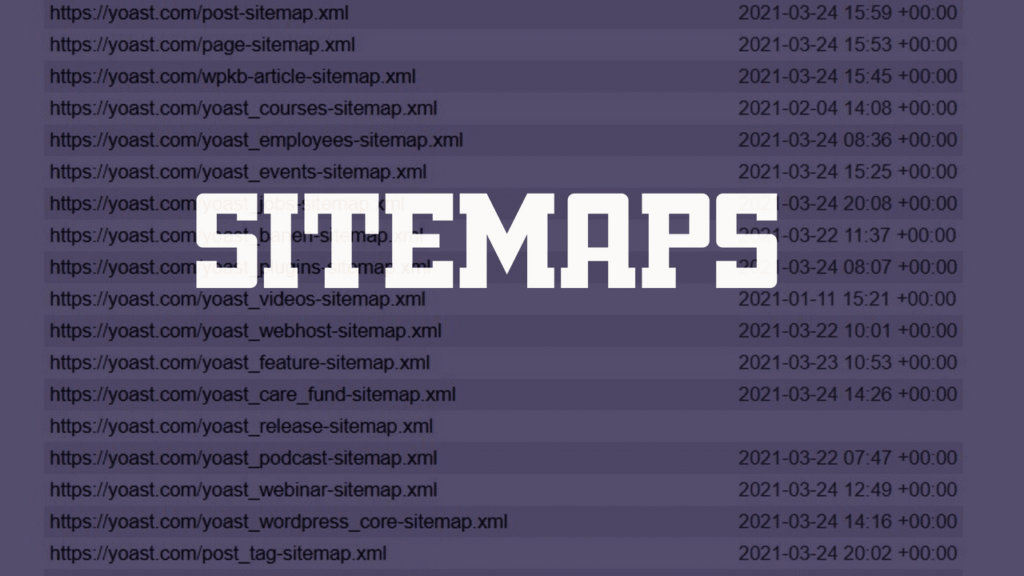
- WordPress with Yoast SEO or Rank Math: yoursite.com/sitemap_index.xml
- Shopify: yoursite.com/sitemap.xml
- Wix and Squarespace: These platforms usually create sitemaps automatically. Check their SEO settings for the sitemap address.
- Custom websites: You may need a sitemap generator or help from a developer.
Before submitting your sitemap, open its URL in your browser.
You should see a list of website URLs or a sitemap index that links to other sitemap files. If the page shows an error, fix it before moving forward.
How to Submit Sitemap to Bing Webmaster Tools: Step by Step
Now, let’s look at how to add a sitemap to Bing Webmaster Tools.
Follow these steps in order. You will first add and verify your website. Then you will submit your sitemap URL.
Step 1: Sign In to Bing Webmaster Tools
Visit Bing Webmaster Tools and sign in with your Microsoft account.
If you are using the platform for the first time, you will see an option to add your website.
Step 2: Add and Verify Your Website
Enter your website’s full URL, including the correct https:// version, and select the option to add it.
Bing needs to confirm that you own the website before giving you access to its full tools.
There are several ways to complete website ownership verification.
Option 1: Import from Google Search Console
This is a convenient option if your website is already verified in Google Search Console.
Choose the import option and follow the instructions. Bing may be able to bring your verified website information over without requiring manual verification.
Option 2: Upload an XML Verification File
Bing may provide a verification file for your website.
Download the file and upload it to your website’s root folder. You can usually do this through your hosting account’s file manager or FTP.
Option 3: Add a Meta Tag
Bing may also provide a verification meta tag.
Copy the tag and add it to the section of your website’s homepage.
WordPress SEO plugins such as Yoast SEO and Rank Math often provide a field where you can paste the verification code.
Option 4: Add a DNS Record
You can also verify your website by adding a CNAME or TXT record to your domain’s DNS settings.
This method may require help from your hosting provider or domain registrar.
After completing your chosen method, return to Bing Webmaster Tools and select Verify.
Step 3: Open the Sitemaps Section
Once your website is verified, open its dashboard.
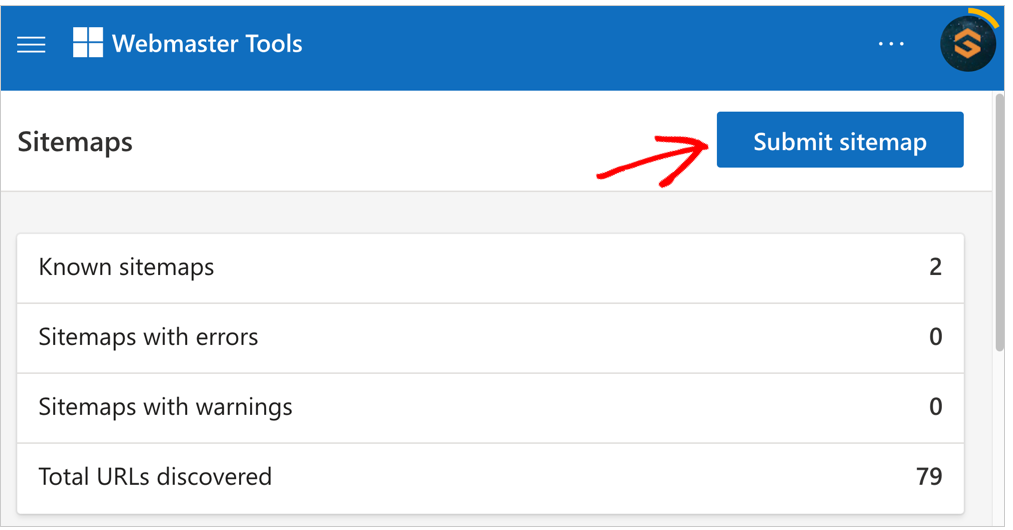
Look at the left-hand menu and select Sitemaps.
This section contains the Bing Webmaster Tools sitemap information for your website. It also shows previously submitted sitemaps and their processing status.
Step 4: Submit Your Sitemap URL
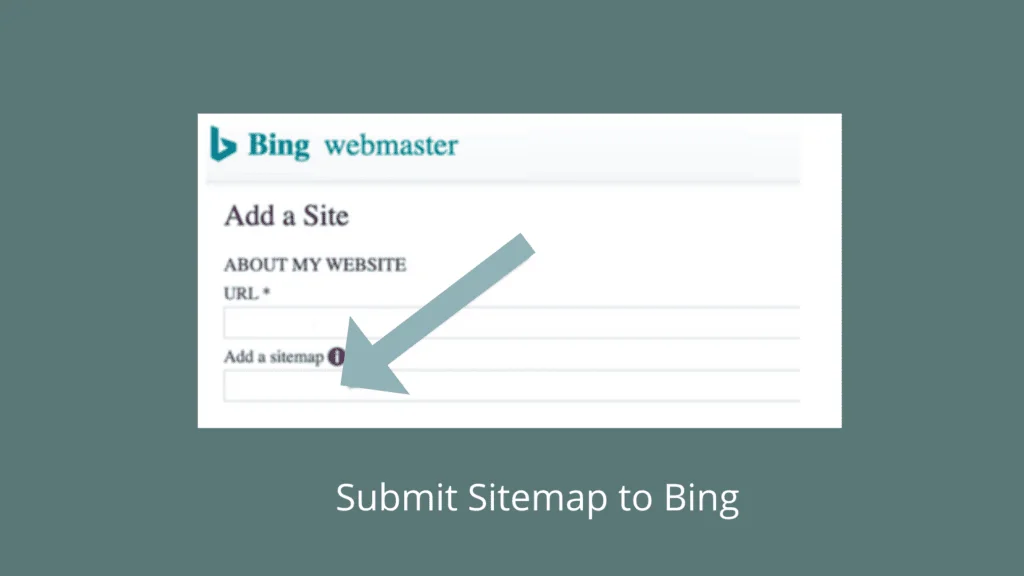
Select the Submit sitemap option.
Enter the complete URL of your XML sitemap.
For example:
https://www.yoursite.com/sitemap_index.xml
Check the URL carefully before submitting it. Make sure the domain and HTTPS version are correct.
Then select Submit.
If your website has separate sitemaps for posts, pages, or images, you can usually submit the sitemap index file. This file points to the other sitemap files, so Bing can discover them through one main submission.
Step 5: Check Your Bing Sitemap Status
After submission, your sitemap should appear in the Sitemaps section.
Its status may show that it has been submitted or is still being processed.
Bing needs time to fetch and read the file. Return to the dashboard later to check whether it was processed successfully.
You can also review the number of URLs discovered and indexed.
Remember that sitemap submission does not mean every page will appear in search results. Bing makes its own indexing decisions.
How to Submit a Sitemap to Bing on WordPress
WordPress users can usually submit a sitemap without creating one manually.
SEO plugins such as Yoast SEO, Rank Math, and All in One SEO can generate XML sitemaps automatically.
Here is how the process works:
- Install and activate an SEO plugin.
- Open the plugin’s settings.
- Find the XML sitemap option.
- Make sure sitemap generation is enabled.
- Copy your sitemap URL.
- Add and verify your website in Bing Webmaster Tools.
- Open the Sitemaps section.
- Submit your sitemap URL.
For many WordPress websites, the sitemap address looks like this:
https://www.yoursite.com/sitemap_index.xml
The exact address may depend on your SEO plugin and website settings.
Yoast SEO Sitemap
If you use Yoast SEO, open its settings and find the XML sitemap feature.
Make sure it is enabled. You can then open the sitemap link and copy its full URL.
Rank Math Sitemap
Rank Math also creates XML sitemaps.
Open Rank Math’s sitemap settings and check that the sitemap feature is active. You can use the displayed sitemap URL for your Bing submission.
All in One SEO Sitemap
All in One SEO includes an XML sitemap feature as well.
Open its sitemap settings, check that the sitemap is enabled, and copy the sitemap address.
Once you have the URL, follow the normal Bing sitemap submission steps.
How to Find Your Website Sitemap URL
Not sure where your sitemap is located?
You can find it by checking common sitemap addresses, your robots.txt file, or your SEO plugin settings.
Check Common Sitemap Locations
Open your browser and try these addresses. Replace yoursite.com with your actual domain.
https://yoursite.com/sitemap.xml
https://yoursite.com/sitemap_index.xml
https://yoursite.com/sitemap-index.xml
If one of these addresses displays a list of URLs or links to other sitemap files, you may have found your sitemap.
Use the complete URL when submitting it to Bing.
Check Your Robots.txt File
The robots.txt file provides instructions for search engine crawlers.
Many websites also include their sitemap address in this file.
Visit:
https://yoursite.com/robots.txt
Look for a line that begins with:
Sitemap:
The URL written after this label is your sitemap address.
This is a simple way to find your sitemap when the common URL locations do not work.
Check Your SEO Plugin Settings
If you use WordPress, open your Yoast SEO, Rank Math, or All in One SEO settings.
Look for the XML sitemap section.
Your plugin should display the sitemap URL and may also let you choose which content types appear in it.
Include important posts and pages. Avoid adding pages that should not appear in search results, such as private admin pages or unnecessary thank-you pages.
Check Your Website Platform’s Help Center
Platforms such as Shopify, Wix, Squarespace, and Webflow can generate sitemaps automatically.
However, their sitemap addresses may differ.
Check your platform’s help center or SEO settings to find the correct XML sitemap URL for Bing.
If a developer created your website, you can also ask them where the sitemap is stored.
How to Verify Your Sitemap Was Accepted
Submitting a sitemap is only the first part of the process.
You should also check whether Bing has received and processed it correctly.
Check the Sitemap Status
Return to the Sitemaps section in Bing Webmaster Tools after submitting your file.
Look at the status column.
Common status messages may include:
- Success: Bing was able to fetch and read the sitemap.
- Pending: Bing is still processing the sitemap.
- Error: Bing found a problem that needs attention.
The exact status information may vary.
Review the Indexed URL Count
Select your submitted sitemap to view more details.
Bing may show how many URLs it discovered and how many have been indexed.
Do not worry if the indexed number is low immediately after submission.
Website indexing can take days or weeks. The time depends on factors such as website quality, page content, site size, and crawling activity.
Check for Sitemap Errors
Common Bing sitemap errors include:
- URLs that return 404 errors.
- Pages blocked by robots.txt.
- Incorrect sitemap addresses.
- Files that take too long to load.
- Invalid XML formatting.
Read the error message and fix the problem on your website.
After making the correction, check the sitemap again. You may also resubmit it if needed.
Best Practices for Bing Sitemaps
A clean XML sitemap makes it easier for Bing to discover your important pages.
Follow these practices to support better website crawling and indexing.
1. Include Only Important URLs
Your sitemap should contain pages you want search engines to discover and consider for indexing.
Avoid adding:
- Admin pages.
- Private pages.
- Duplicate URLs.
- Unnecessary tag archives.
- Pages with a noindex tag.
- URLs that return errors.
This keeps your sitemap useful and focused.
2. Use Complete URLs
Always use absolute URLs in your sitemap.
For example, use:
https://www.yoursite.com/about-us
Do not use incomplete paths such as:
/about-us/
Complete URLs help search engine bots understand which pages they should visit.
3. Follow Sitemap File Limits
The sitemap protocol allows up to 50,000 URLs and 50 MB of uncompressed data in one sitemap file.
If your website has more URLs, divide them into smaller sitemap files.
You can then use a sitemap index file to connect all the separate files.
4. Use Accurate Last Modified Dates
The lastmod field tells search engines when a page was last updated.
Use accurate dates.
Do not change the date just to make an old page appear new. Only update it when the page has actually changed.
5. Keep Your Sitemap Accessible
Your sitemap should open without errors.
Test it in a browser and check its status in Bing Webmaster Tools.
Make sure your hosting setup does not block search engine crawlers from accessing it.
6. Use a Sitemap Index for Large Websites
If your website has many posts, pages, images, or other content types, a sitemap index can make management easier.
It acts as a main file that points to smaller sitemap files.
Instead of submitting several separate files, you can submit the main sitemap index URL.
Common Bing Sitemap Errors to Avoid
Even a simple sitemap submission can fail if your website has technical problems.
Here are some common mistakes and ways to avoid them.
1. Submitting the Wrong Sitemap URL
A small spelling mistake can stop Bing from finding your sitemap.
Copy the full address from your browser instead of typing it manually.
2. Submitting Before Website Verification
You should verify your website in Bing Webmaster Tools before submitting its sitemap.
Complete the ownership verification process first.
3. Including Noindex Pages
A page with a noindex instruction tells search engines not to include it in their index.
Avoid adding these pages to your sitemap. Make sure your sitemap and indexing instructions do not send conflicting signals.
4. Mixing HTTP and HTTPS Versions
If your website uses HTTPS, submit the HTTPS sitemap URL.
For example, use:
https://www.yoursite.com/sitemap.xml
Avoid submitting an HTTP version if your website has moved to HTTPS.
5. Ignoring Sitemap Errors
Do not leave sitemap errors unresolved for months.
Check the Sitemaps section regularly. Fix broken URLs, blocked pages, and file access problems when you find them.
6. Blocking Your Sitemap in Robots.txt
Your robots.txt file should not prevent search engine crawlers from accessing your sitemap.
Check the file if Bing reports that it cannot fetch your sitemap.
Expert Tips for Bing Website Indexing
Submitting an XML sitemap is a useful part of Bing Webmaster Tools SEO, but there are other steps you can take to support website indexing.
Bing Webmaster Tools includes a URL Inspection feature.
Use the URL Inspection Tool
You can use it to check how Bing sees an individual page and identify possible indexing problems.
It is useful when you publish an important page and want to understand why it is not appearing in Bing’s index.
Use it for priority pages rather than submitting every URL manually.
Use the IndexNow Protocol
IndexNow is a protocol that lets websites notify participating search engines when their pages are added, updated, or removed.
A sitemap provides a list of important URLs. IndexNow sends notifications about specific changes.
Using both can support your website indexing process.
Submit Image and Video Sitemaps When Needed
If images or videos are an important part of your website, consider using dedicated media sitemaps.
These files can help search engines discover your media content.
Some SEO plugins can generate them automatically.
Publish Useful Content Regularly
A sitemap helps Bing discover your pages, but useful content gives search engines a reason to consider indexing them.
Create original articles, answer readers’ questions, and update old information when necessary.
Fix Crawl Errors Quickly
Check the crawl and indexing reports in Bing Webmaster Tools.
If Bing cannot access an important page, investigate the cause.
You may need to fix a broken link, remove an incorrect block, or update a page URL.
Avoid Daily Sitemap Submission
You do not need to submit your sitemap every day.
Once Bing knows your sitemap address, it can check the file again on its own schedule.
Review the sitemap report regularly and resubmit when major changes or errors make it necessary.
Real-World Examples
Here are three simple examples of how sitemap submission can help different types of websites.
Example 1: A New Food Blog
Imagine a new food blog with 40 articles and very few backlinks.
The owner verifies the website in Bing Webmaster Tools by importing it from Google Search Console.
Next, the owner submits the XML sitemap.
Bing can now discover the blog’s pages through the sitemap. Over time, the owner can check which articles have been indexed and identify any problems.
Example 2: An Online Course Website
An online course website has 300 lesson pages.
The owner notices that new lessons are taking a long time to appear in Bing search results.
After checking the sitemap, the team finds that the file is too large and takes too long to load.
They divide the URLs into smaller sitemap files and create a sitemap index.
This makes the sitemap easier to manage and helps Bing discover the lesson pages.
Example 3: A Local Plumbing Website
A local plumbing business has a small website with five main pages.
The owner submits the sitemap through Bing Webmaster Tools and checks the indexing status.
Two service pages are missing from Bing’s index.
The owner uses URL Inspection to investigate them and fixes the problems that are preventing Bing from accessing the pages.
This helps the business improve its search engine visibility for relevant local searches.
Bing Webmaster Tools in 2027

Bing Webmaster Tools remains a useful platform for website owners who want to monitor their performance in Microsoft Bing.
Its main sitemap submission process is straightforward:
- Add your website.
- Verify website ownership.
- Open the Sitemaps section.
- Submit your XML sitemap.
- Check the processing status and indexing reports.
The platform also provides tools for URL inspection, search performance, and website issue monitoring.
IndexNow is another useful option for websites that regularly publish or update content. It can notify participating search engines about URL changes without replacing the need for a sitemap.
For website owners, the best approach is to maintain a clean sitemap, monitor indexing reports, and publish helpful content.
Important Things to Consider
Submitting a sitemap helps Bing discover your website pages, but it does not force the search engine to index every URL.
Bing decides which pages to index based on factors such as content quality, usefulness, uniqueness, and relevance.
If many submitted pages remain unindexed, check their content and technical settings. The problem may not be the sitemap itself.
Also, remember that sitemap submission is not a direct ranking factor. It helps with URL discovery, but it does not automatically improve your search positions.
Keep your sitemap updated as your website grows. New pages and important website changes should be reflected in the sitemap.
It is also important to use Google Search Console. Bing and Google have separate search indexes, so submitting your sitemap to one platform does not automatically submit it to the other.
Using both tools helps you monitor your website’s search engine performance across different platforms.
Search Engine Insight delivers practical knowledge on SEO developments, website optimization methods, and online marketing trends to help businesses strengthen their digital strategies.
Frequently Asked Questions
How do I submit my sitemap to Bing Webmaster Tools?
Sign in to Bing Webmaster Tools, add and verify your website, and open the Sitemaps section. Select Submit sitemap and enter your complete XML sitemap URL.
Where is the sitemap submission option in Bing Webmaster Tools?
After verifying your website, select it from the dashboard. Open the Sitemaps section in the left-hand menu. You should find the Submit sitemap option there.
How do I verify my website in Bing Webmaster Tools?
You can verify your website by importing it from Google Search Console, uploading an XML verification file, adding a meta tag to your homepage, or adding a DNS record.
What is the correct XML sitemap URL for Bing?
The correct URL depends on your website platform and SEO plugin.
For many WordPress websites, it is:
https://www.yoursite.com/sitemap_index.xml
For many Shopify websites, it is:
https://www.yoursite.com/sitemap.xml
You can also check your robots.txt file or SEO plugin settings.
How long does Bing take to index a sitemap?
Bing may fetch a submitted sitemap within a day, but indexing its pages can take longer.
Some pages may appear within days, while others may take weeks. The timing depends on your website, content, and crawling activity.
Why is my sitemap showing an error in Bing Webmaster Tools?
Common reasons include an incorrect URL, broken pages, robots.txt restrictions, and invalid XML formatting.
Check the error message, fix the problem, and submit the corrected sitemap if needed.
Can I submit multiple sitemaps to Bing?
Yes. You can submit multiple sitemap files.
However, using one sitemap index file is often easier. The index file connects your smaller sitemap files, allowing Bing to discover them through one main URL.
Does submitting a sitemap improve my Bing rankings?
Submitting a sitemap does not directly improve rankings.
It helps Bing discover your pages. Your rankings still depend on factors such as content quality, relevance, backlinks, and user experience.
Should I submit my sitemap to both Google and Bing?
Yes. Google and Bing have separate search indexes and webmaster tools.
Submit your sitemap through Google Search Console for Google and Bing Webmaster Tools for Bing.
How often should I resubmit my sitemap to Bing?
You do not need to resubmit it every day.
Bing can check your sitemap again automatically. Consider resubmitting it after major website changes, a sitemap structure update, or a technical correction.
What is the difference between a sitemap and IndexNow?
A sitemap is a file that lists important website URLs.
IndexNow is a protocol that notifies participating search engines when specific URLs are added, updated, or removed.
Both can support website discovery. A sitemap provides the overall list of pages, while IndexNow sends change notifications.
My pages are submitted but not indexed on Bing. What should I do?
First, check whether the pages are blocked by robots.txt or contain a noindex tag.
Next, use the URL Inspection tool in Bing Webmaster Tools to investigate the problem.
If there are no technical blocks, review the page content. Improve thin, duplicate, or unhelpful content and check the page again.
How do I update my sitemap in Bing Webmaster Tools?
You usually do not need to upload a new sitemap file every time you publish a page.
If your SEO plugin or website platform updates the sitemap automatically, Bing can fetch the updated file later. You can also resubmit the sitemap after major changes if necessary.
How can I remove an old sitemap from Bing Webmaster Tools?
Open the Sitemaps section for your verified website and review the available actions for the old sitemap.
The exact removal option may depend on the current dashboard. Also, make sure the old sitemap is no longer being generated or referenced by your website if it is no longer needed.
How can I use Bing Webmaster Tools for SEO?
You can use Bing Webmaster Tools to submit sitemaps, monitor indexed pages, inspect URLs, review search queries, and find technical problems.
Checking these reports regularly can help you improve website crawling, indexing, and search visibility.
Conclusion: How to Submit Sitemap to Bing Webmaster Tools
Now you know how to submit sitemap to Bing Webmaster Tools, from website verification to checking your sitemap status.
The process is simple: verify your website, find your XML sitemap URL, open the Sitemaps section, and submit the file.
After submission, check the status and review any indexing or sitemap errors. Keep your sitemap clean and updated as your website grows.
For better results, use Bing Webmaster Tools alongside Google Search Console and consider enabling IndexNow for URL change notifications.
A properly maintained sitemap gives Bing a clear path to your important pages. It is a small but useful step in building a strong technical SEO foundation.